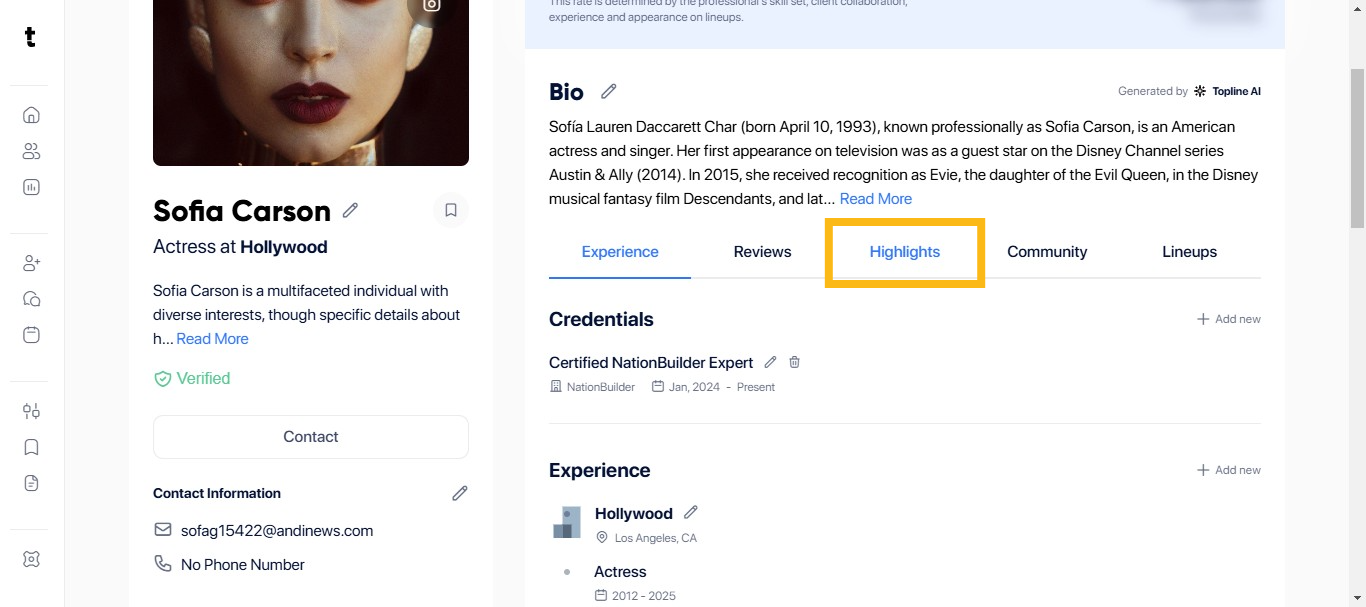
Step 1: Click Highlights
On the Topline homepage, locate and click on the Highlights section. This is usually found in the main menu or dashboard.
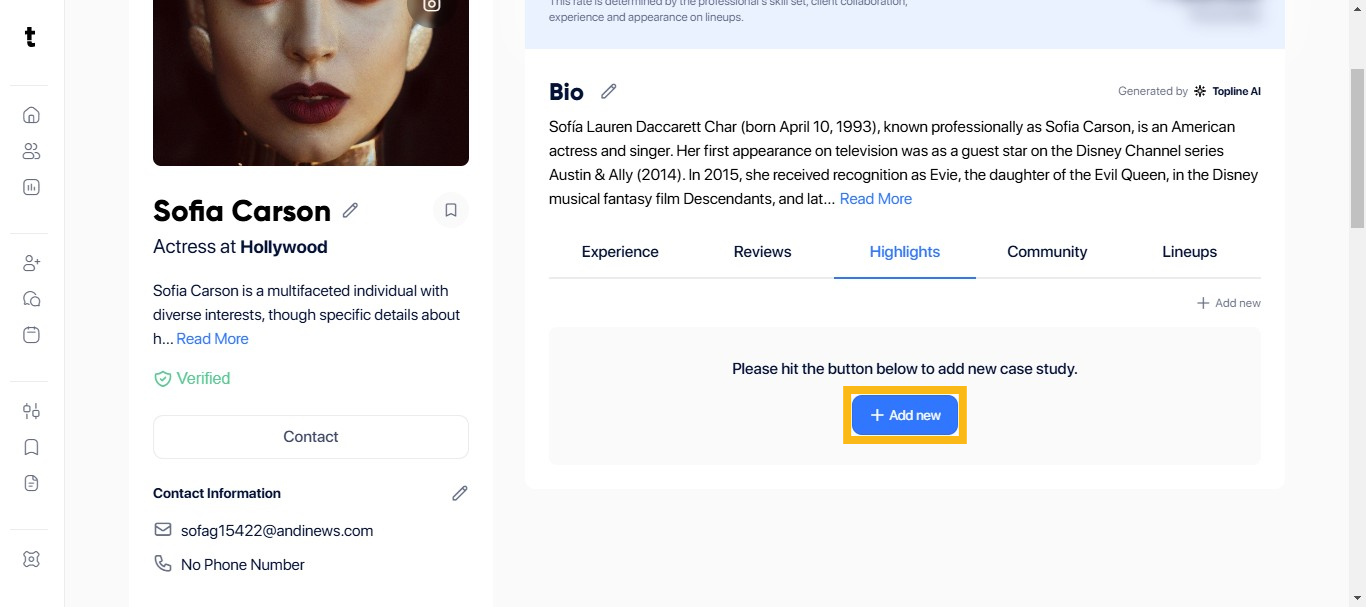
Step 2: Click + Add New Button
Within the Highlights section, find and click on the + Add New button. This option allows you to add portfolio or your CV/resume.
Step 3: Add Title
In the new entry form, find the field labeled or described as Title and enter the value CV/Resume. This helps in identifying your document upload.

Step 4: Tick the circle to Upload Document
In the same form, Tick the circle to Upload Document. This will allow you to upload your CV/Resume in a new tab.

Step 5: Upload Highlight
Now, click on the Upload Highlight button to start the process of uploading your CV/resume. A file browser window will open. Navigate to the location on your device where your CV/resume is saved, select the file, and click Open.

Step 6: Save Changes
After your file is uploaded, find and click the Save Changes button to finalize the upload process. This saves your document to Topline.