Using your preferred browser, go to the topline.com home page.

Step 2: Go to Shortlist
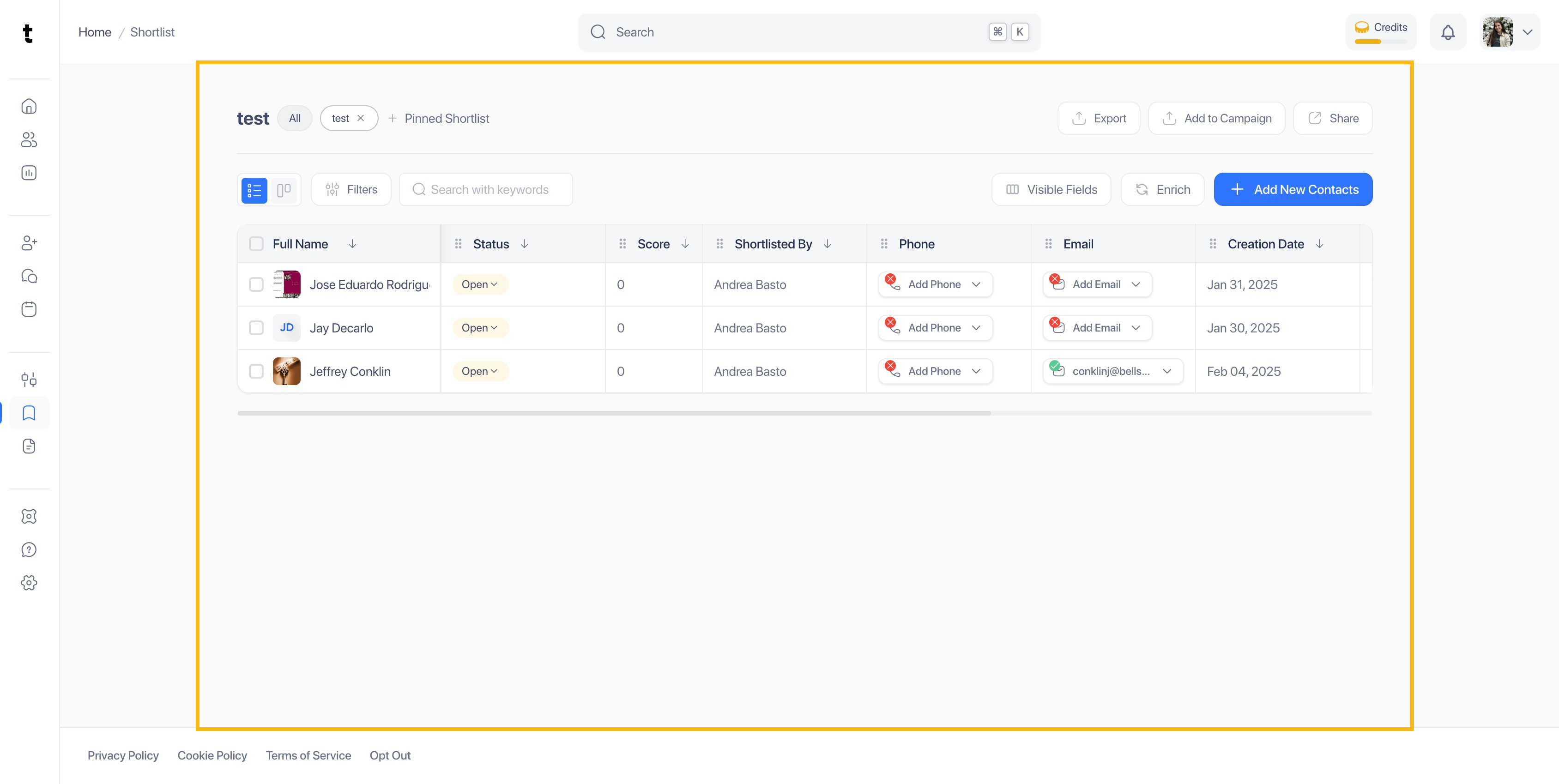
On the left side menu, click on the Shortlist option.

Step 3: Select Shortlist
Select the shortlist where you want to add profiles.

Step 4: Click on Add New Contacts
To add profiles or candidates to your shortlist, click on the Add New Contacts button.

Step 5: Add New Contacts
Choose any option from the list to add new contacts or applicants to the shortlist.

Step 6: Add from topline.com
This option allows you to add profiles already created inside Topline.com.

Step 7: Select Profile
Select the profile you want to add to your shortlist and then click on the bookmark icon.

Step 8: Select your Shortlist
From the shortlists list, select the one where you want to add the profile you selected.

Step 9: Click on Add now
Once you select your shortlist, click on Add Now.

Step 10: Add by Importing from CSV
Another option to add contacts or applicants to a shortlist is by importing them using a CSV file. To use that option, click on Import Now.

Step 11: Upload CSV file
To import contacts or applicants from a csv file, drag and drop the file in the box. You can also click on it, and select the file from your folder.
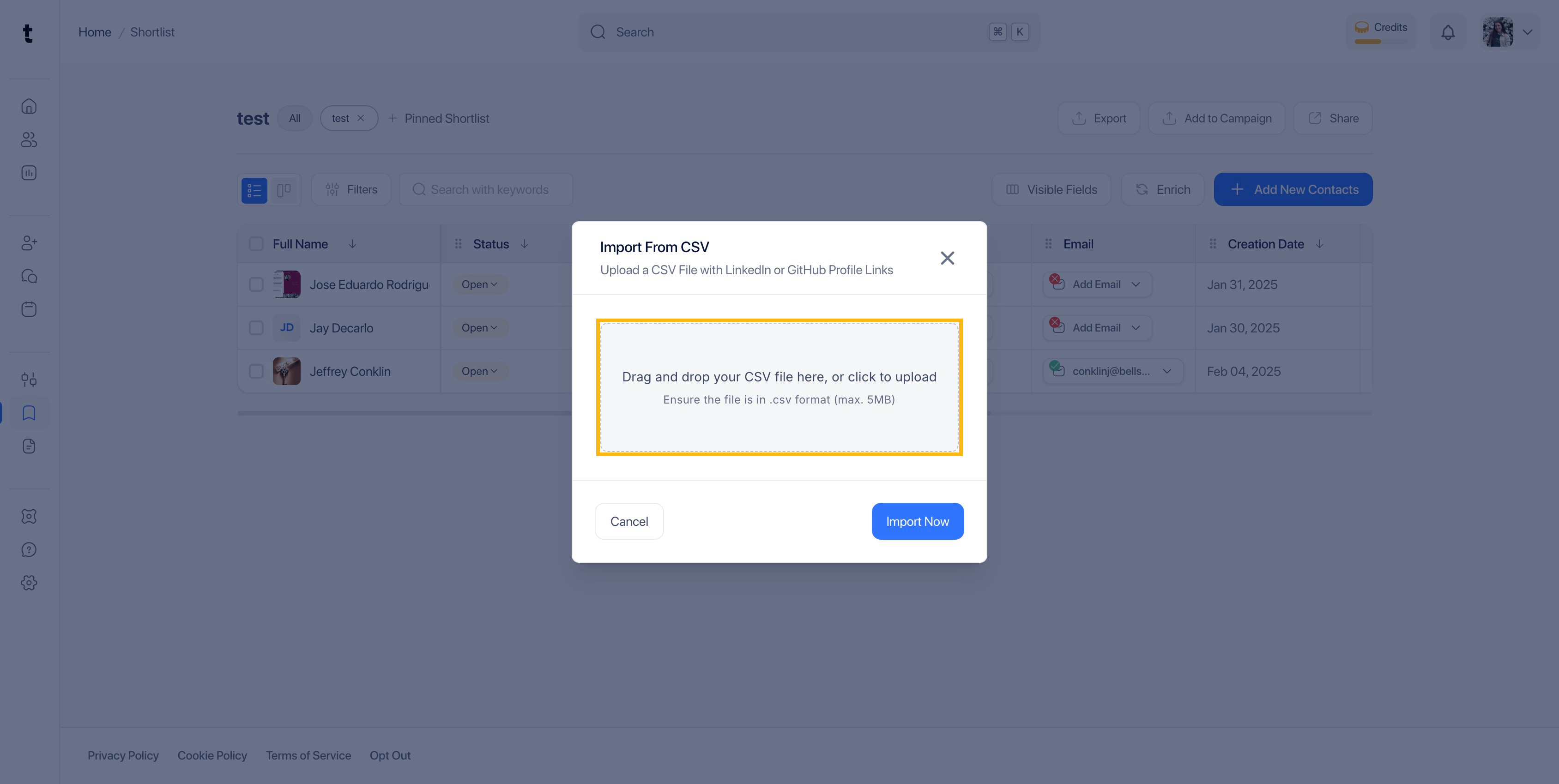
Step 12: Click Import Now
Once you have added your csv file, click on Import Now to add your contacts.

Step 13: Add by Inviting to apply
This option allows you to an email to your contacts and invite them to apply.

Step 14: Click on Invite Now
Once you have added the email, click on Invite now.

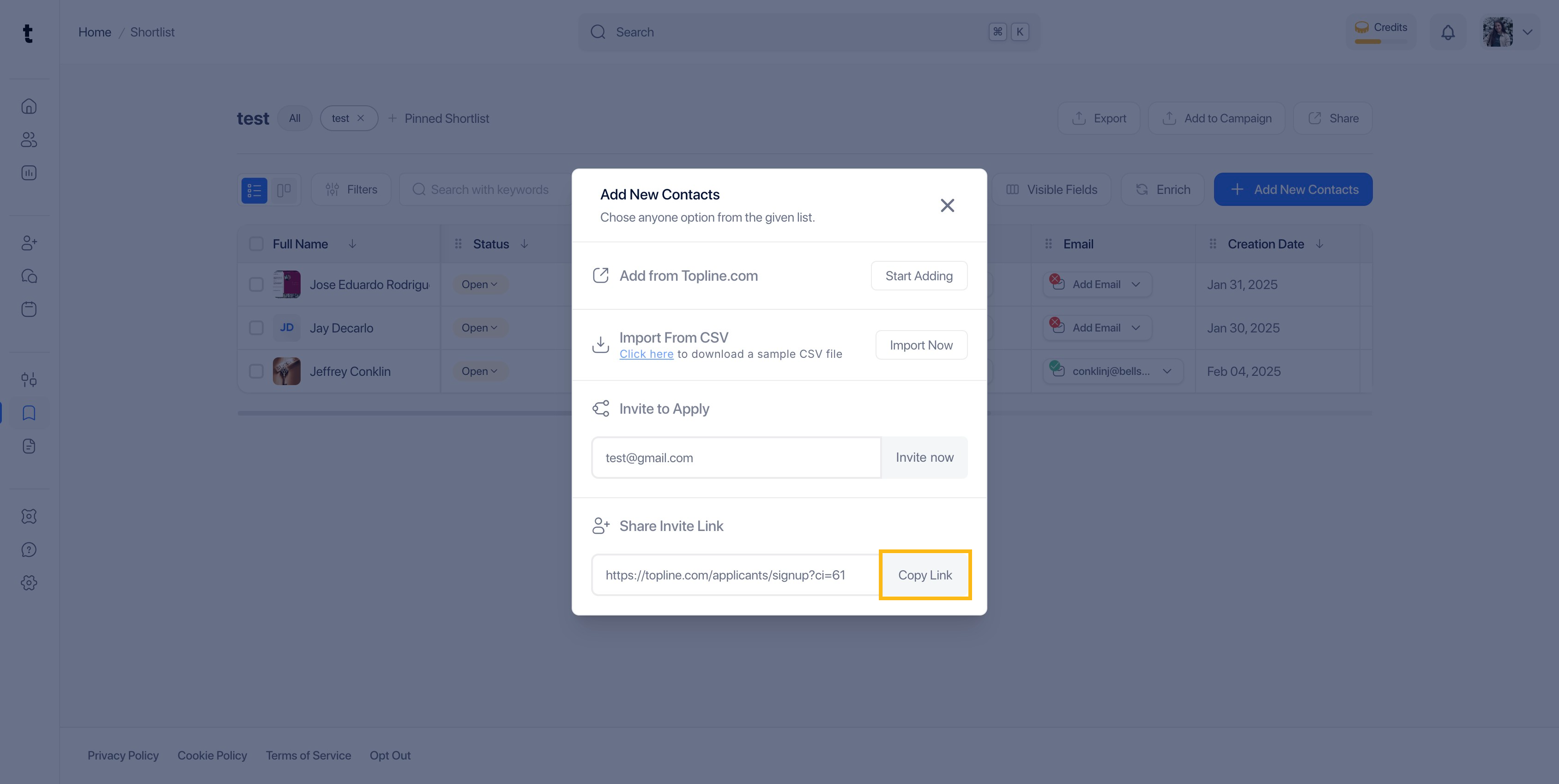
Step 15: Add by Sharing Invite Link
The system automatically creates a unique link to add contacts and applicants to a shortlist.

Step 16: Click on Copy Link
Share your invite link by clicking on Copy Link.
Step 17: View Invite Link
The ones that get your invite link, will be taken to this view.

Step 18: View your Contacts
You can visualize the contacts you added to your shortlist by selecting it on the upper menu.