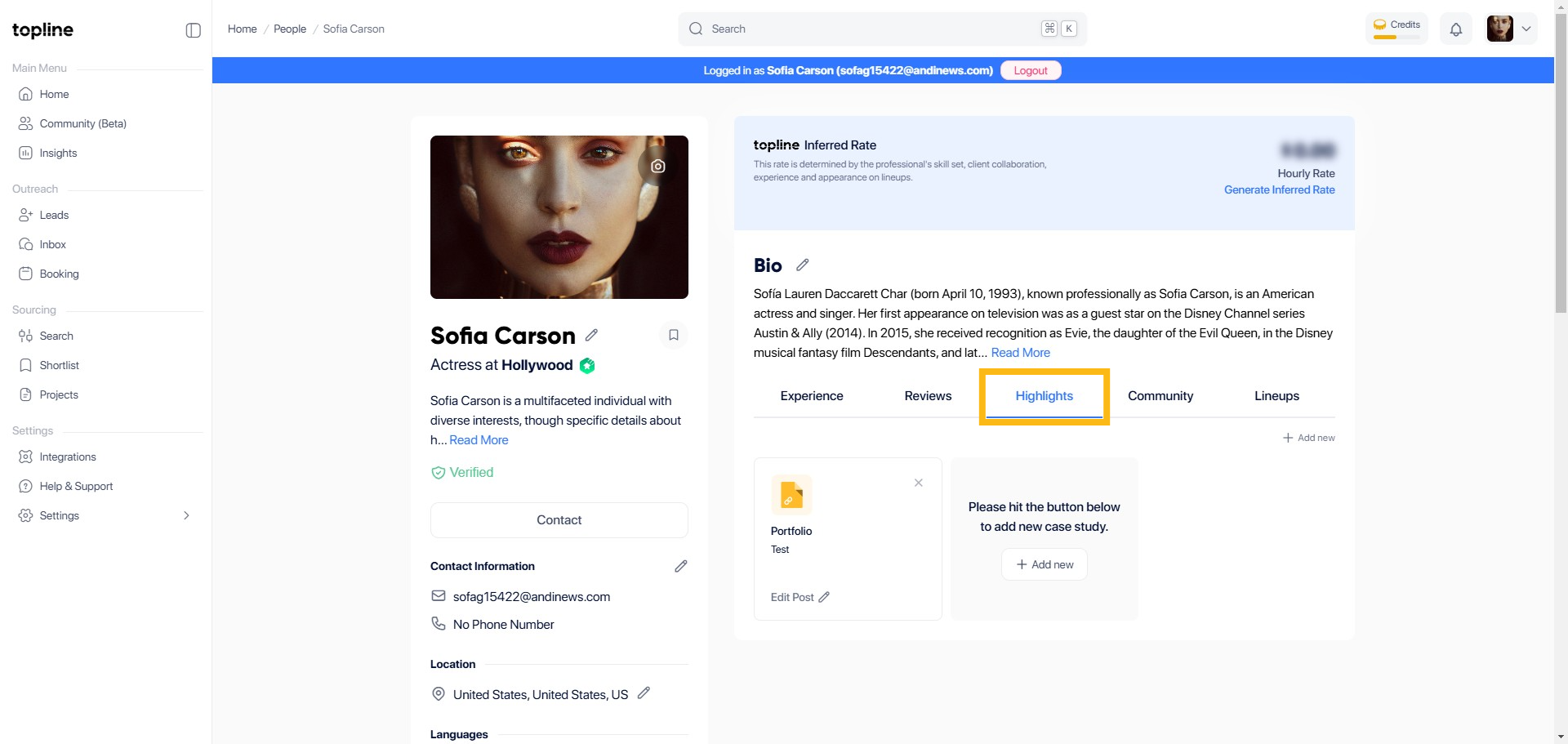
Step 1: Navigate to Highlights
Start by accessing the Highlights section, which is typically found in your profile dashboard. This area is where you can showcase your most significant accomplishments.
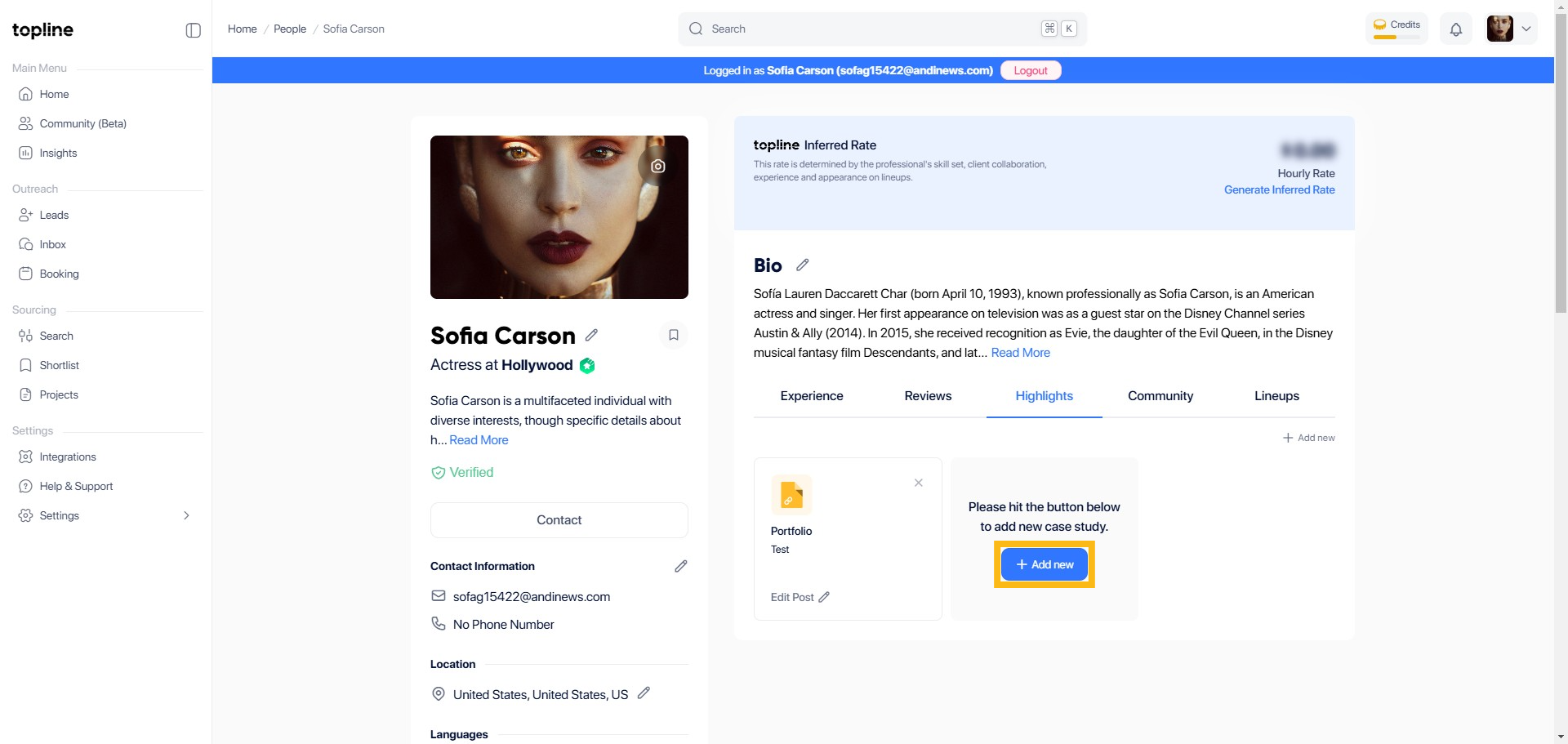
Step 2: Click + Add New
In the Highlights section, look for an option to add a new entry. This is usually labeled as + Add New and can be accessed by clicking on a button.
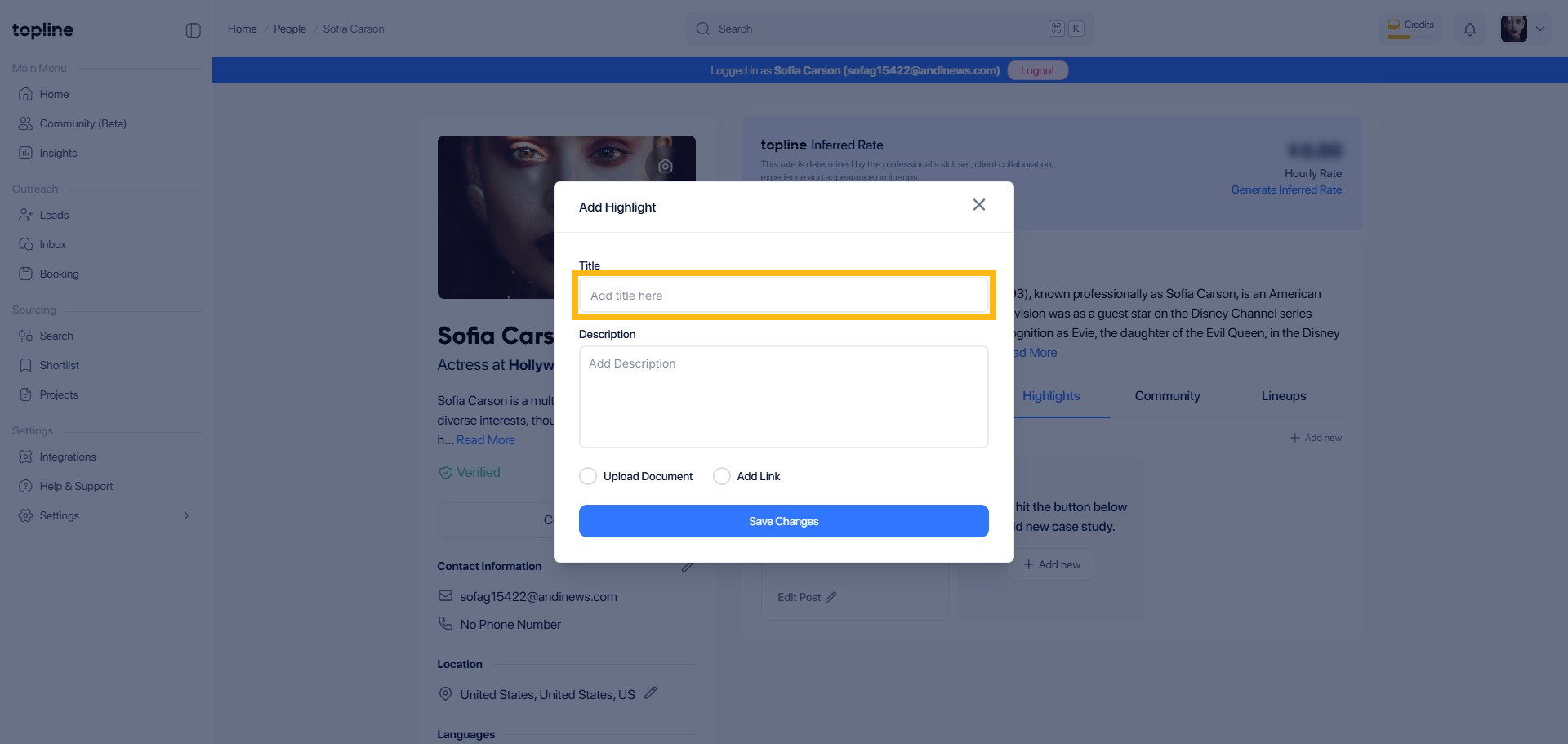
Step 3: Add Title
In the new entry form, find the field labeled or described as Title and enter the value portfolio. This helps in identifying your document upload.
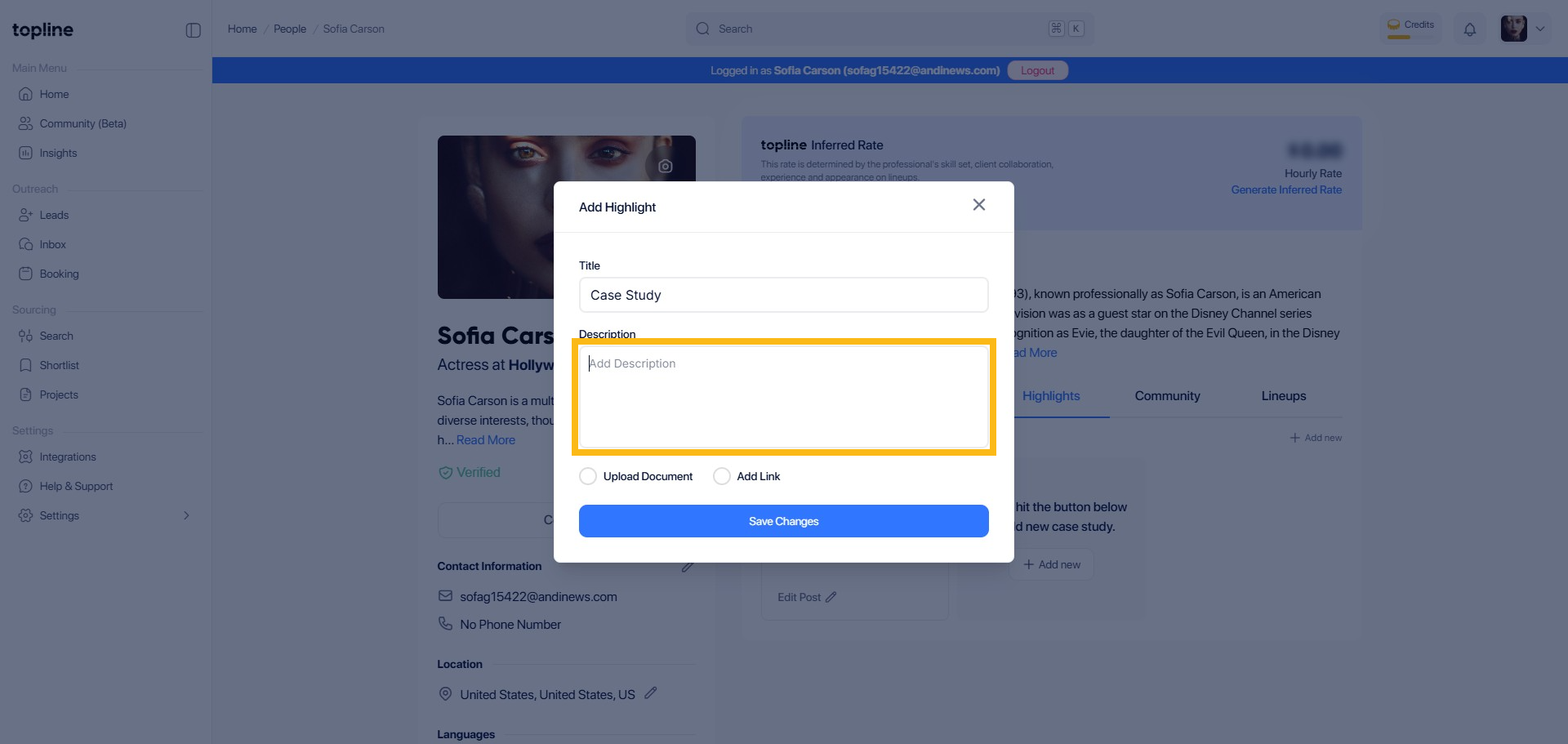
Step 4: Add Description
In the input field provided, you will be prompted to enter more information.
Step 5: Tick the Circle to Upload Document
In the same form, Tick the circle to Add Link. This will allow you to upload your Case Study in a new tab.

Step 6: Upload Highlight
In the next input field, upload your Case Study.

Step 7: Save Changes
Finally, click Save Changes to complete the process. This action will save your new case study to your profile.