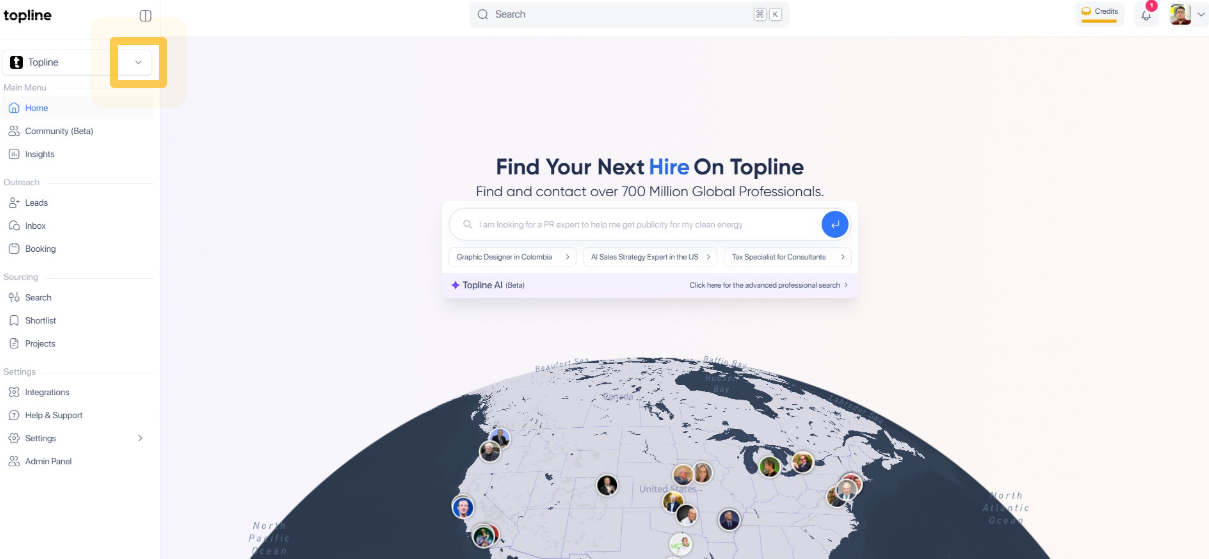
Step 1: Click the Dropdown Tab
Click the dropdown menu in the upper right corner to select your team.
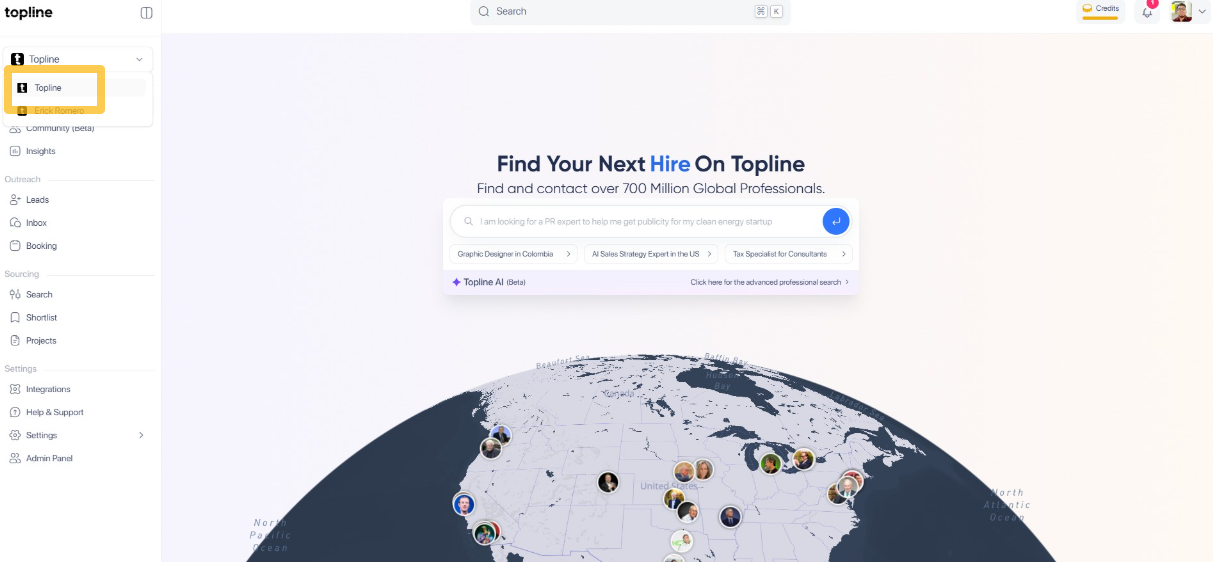
Step 2: Select Team
Click the name of your team. To add member, you must be logged into your team's account.
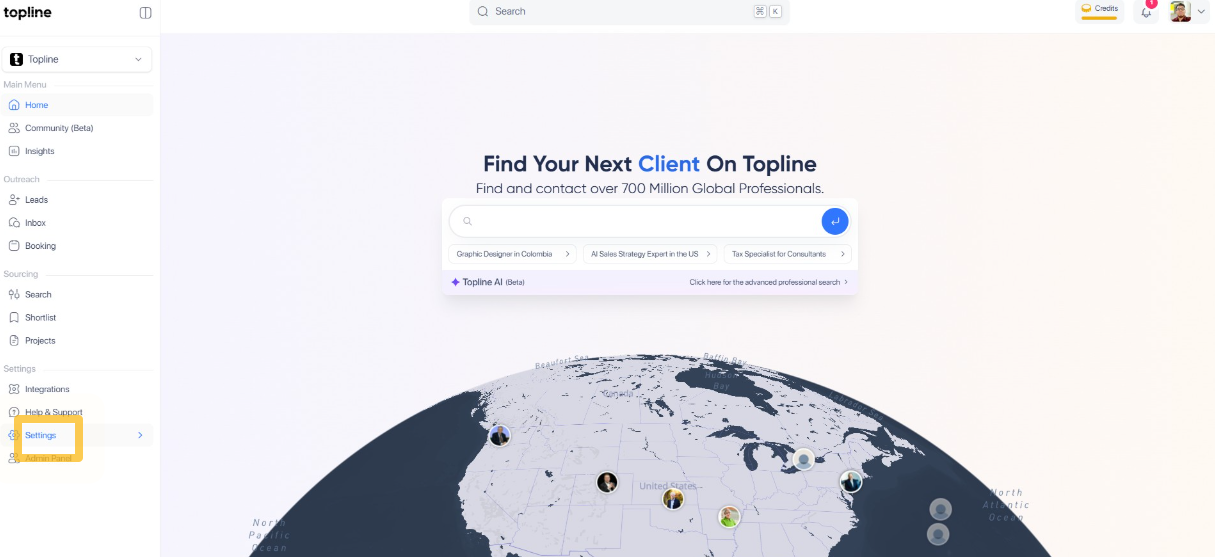
Step 3: Click Settings
Go to the lower left tab and click Settings.
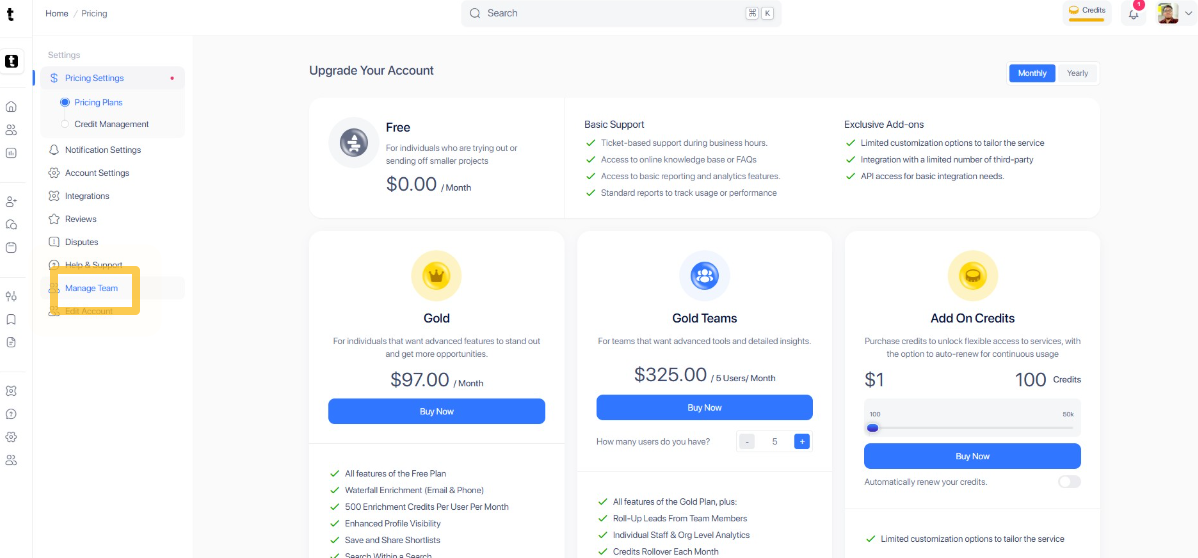
Step 4: Click Manage Team
Navigate to the Manage Team section within the settings menu.
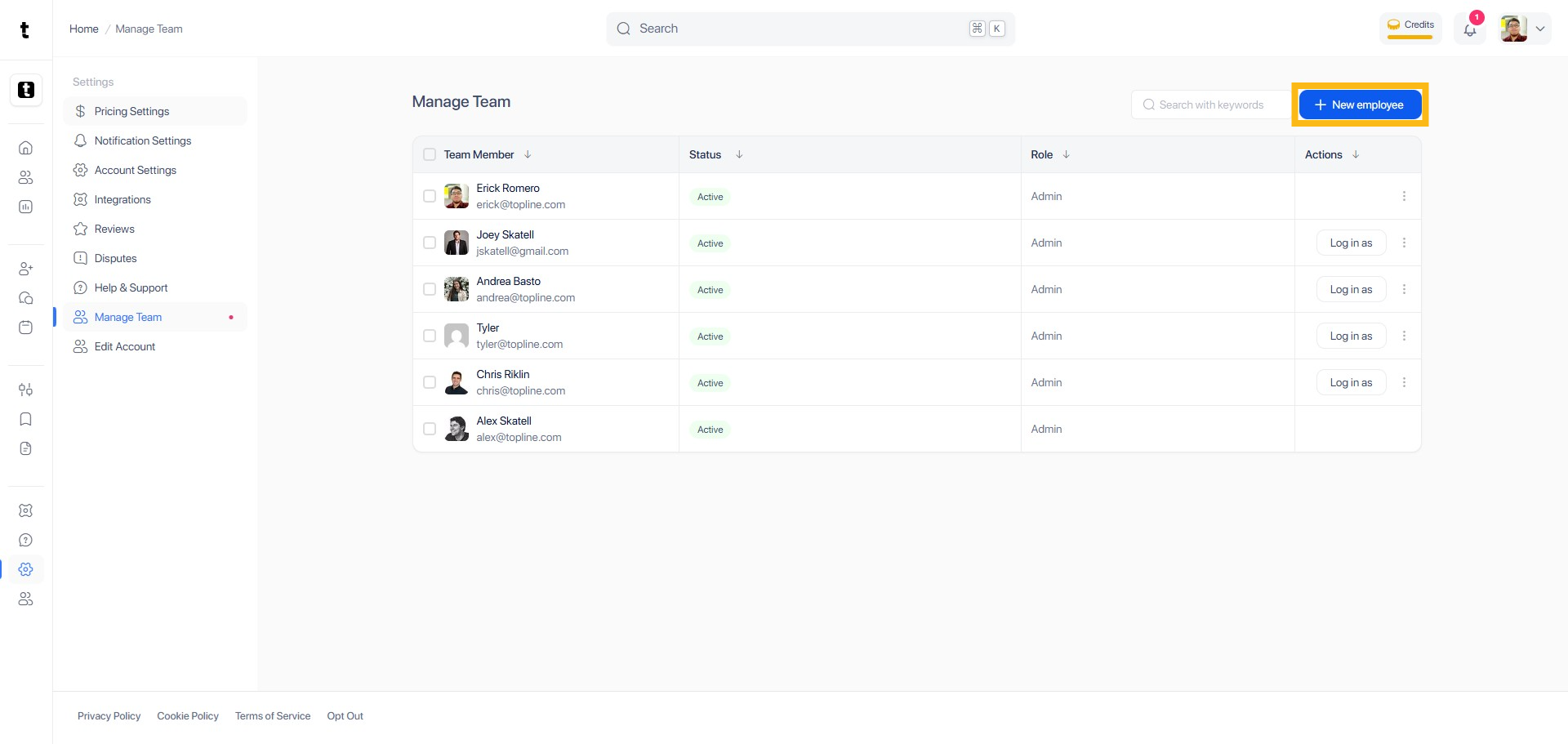
Step 5: Click + New employee
Click the + New employee button to start adding a new member.
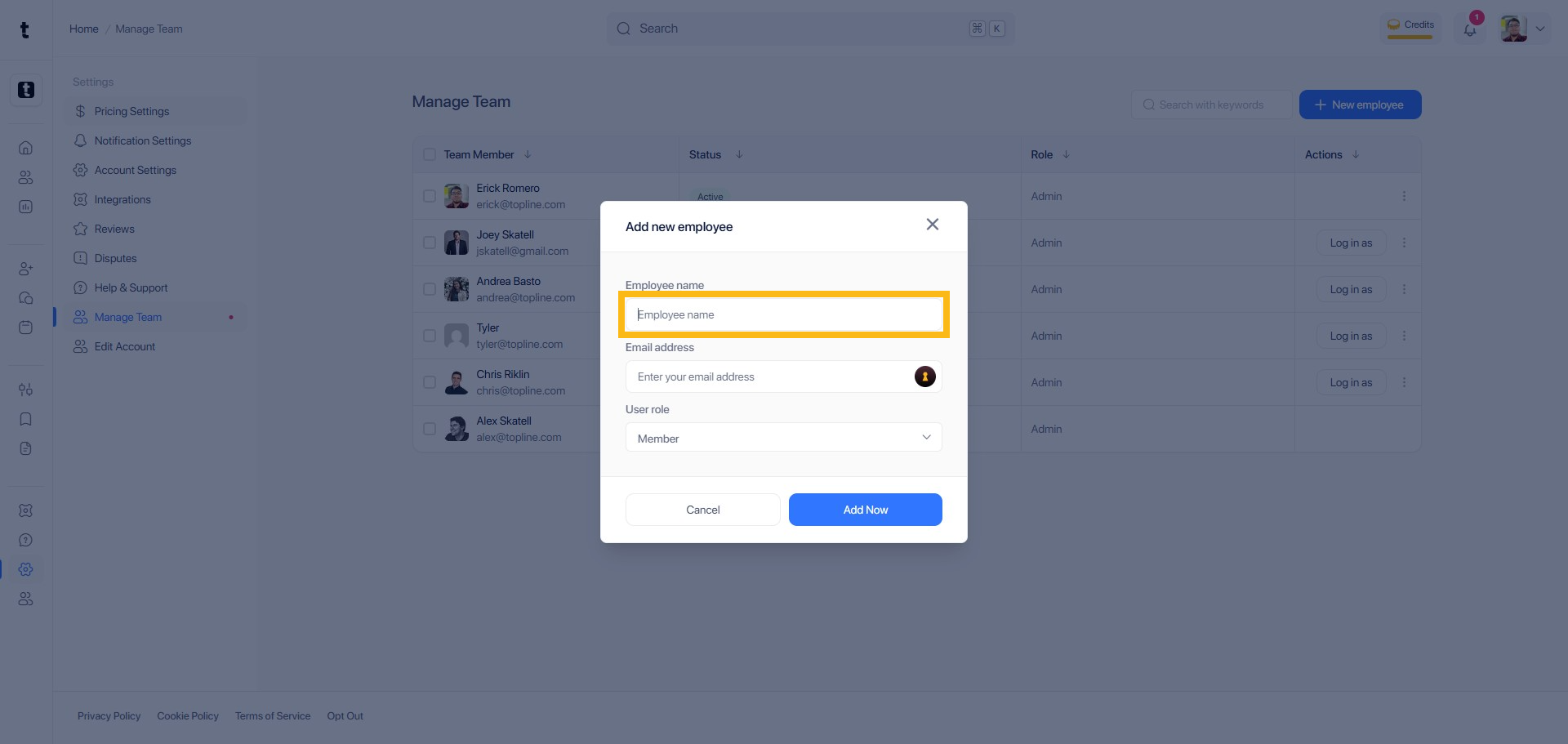
Step 6: Enter Employee Name
Enter the name that will be used to set up the new member.
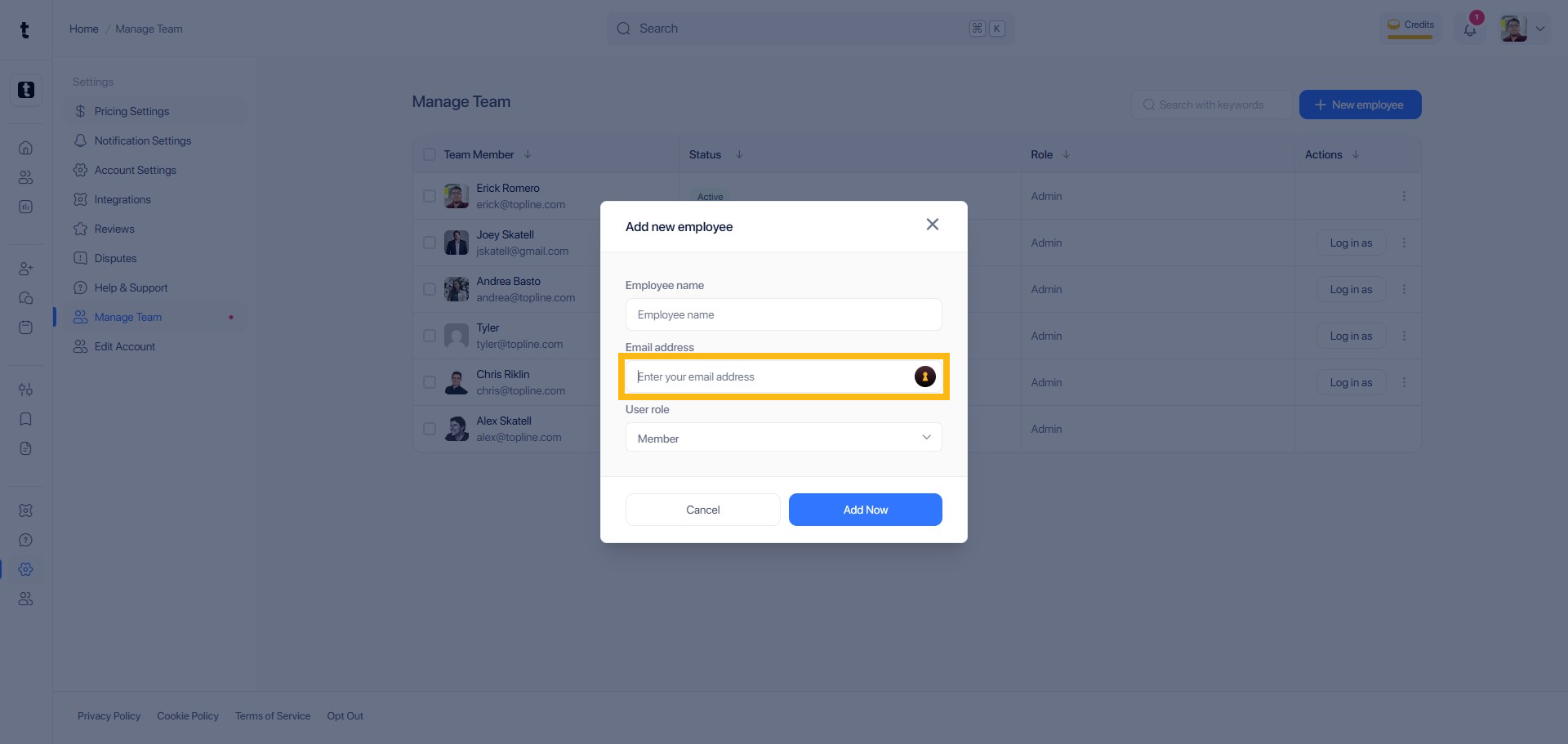
Step 7: Enter Employee Email Address
Enter the email address the invite will be sent to.
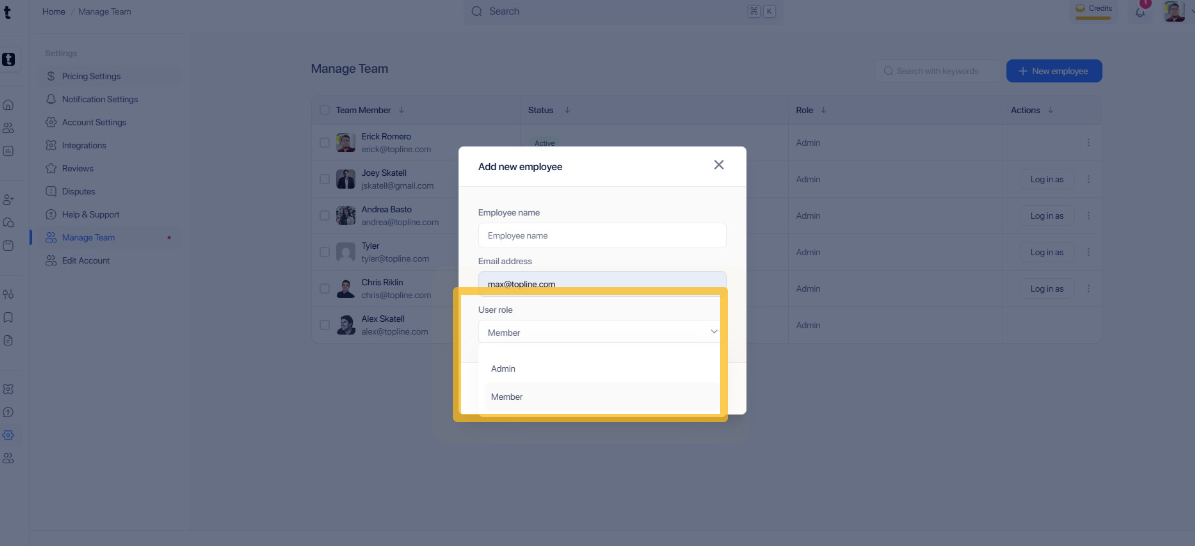
Step 8: Select User Role
Choose between Admin or Member role by clicking the dropdown menu.
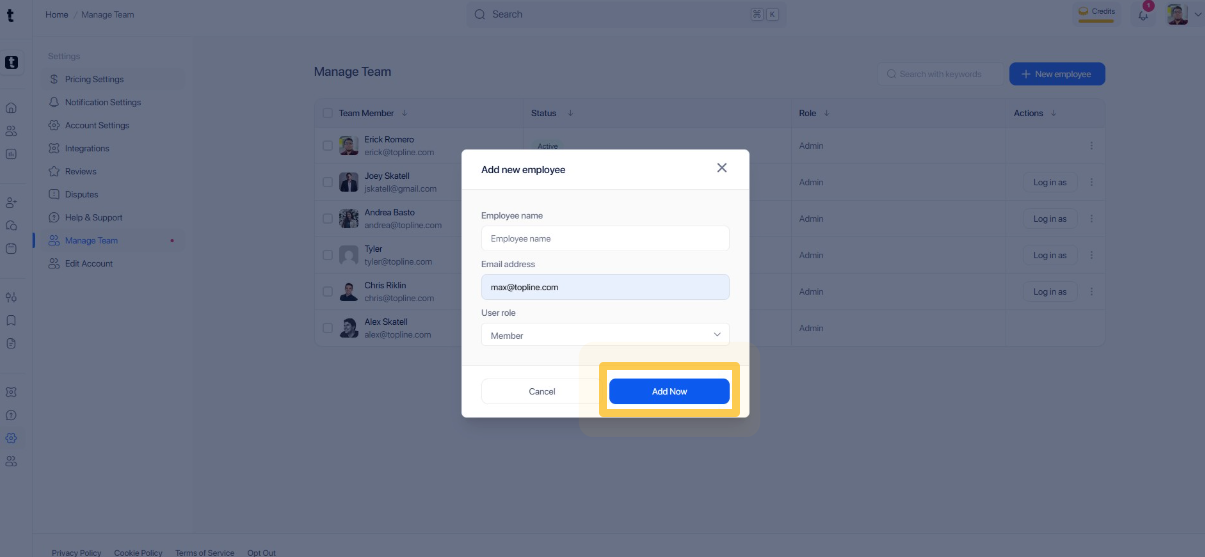
Step 9: Click Add Now
Click the Add Now button to complete adding the new team member.