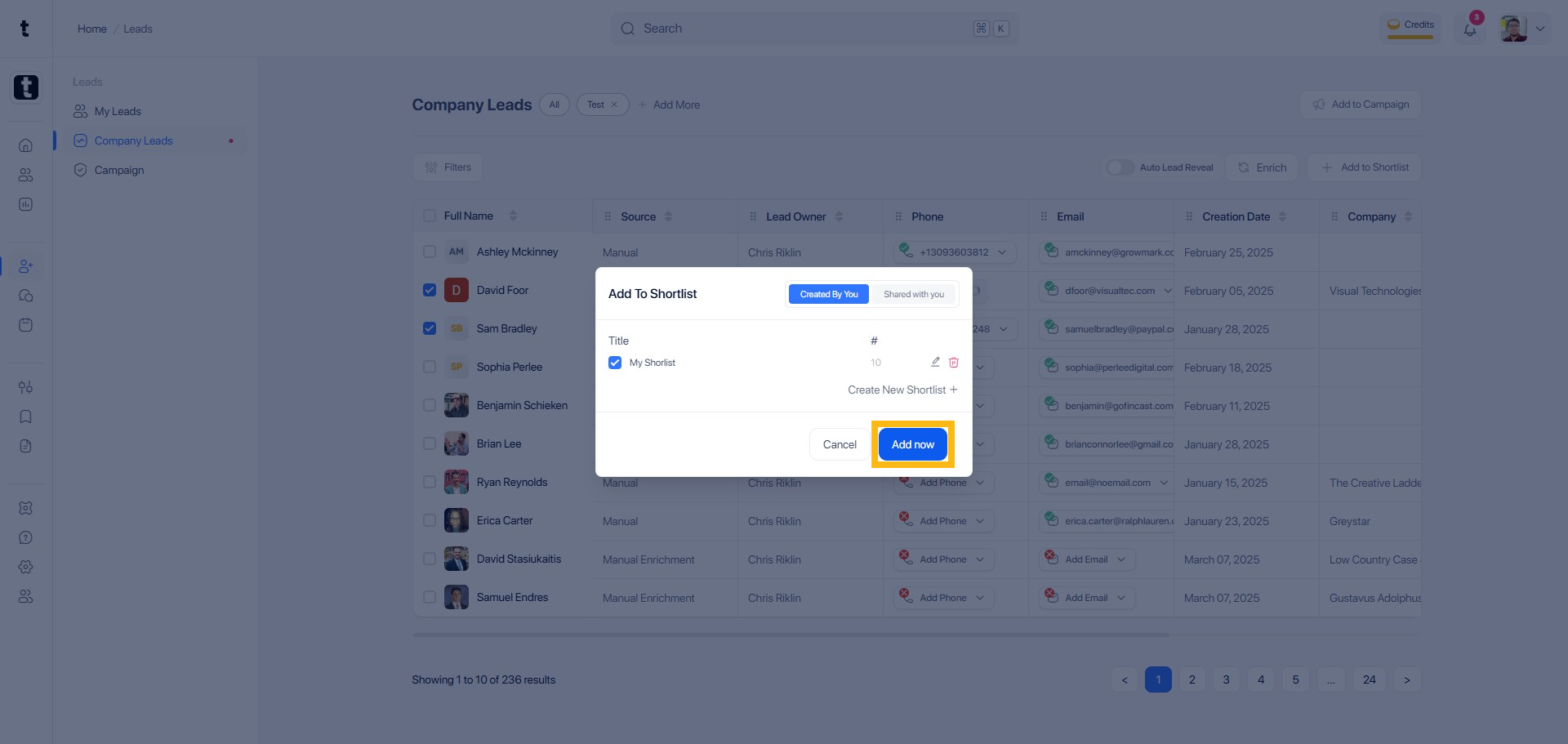
Step 1: Navigate to Leads Portal
Using your preferred browser, go to topline.com and then click on Leads, located on the left side menu.
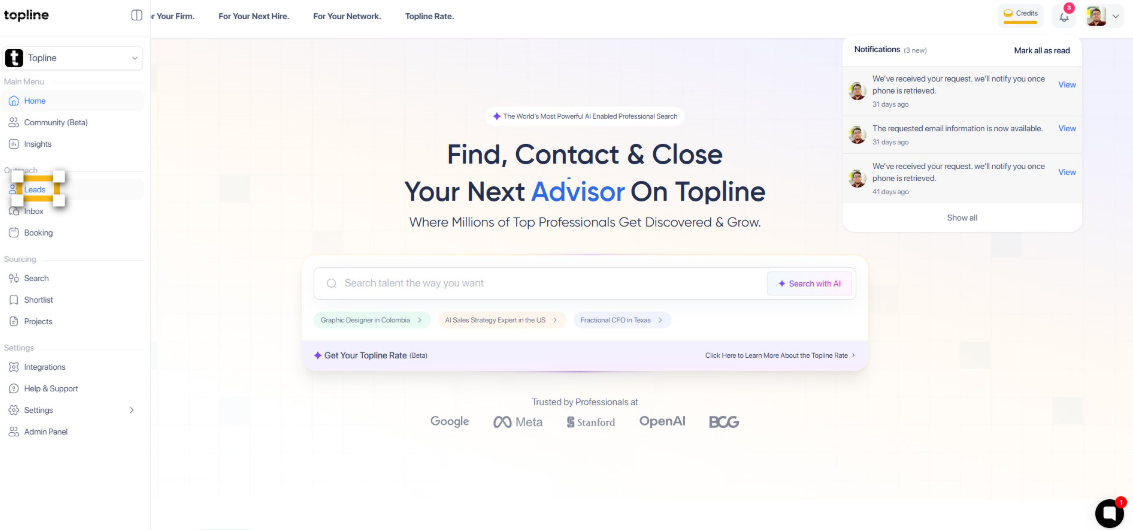
Step 2: Go to Company Leads
Once in the portal, navigate to the Company Leads section to access your leads.
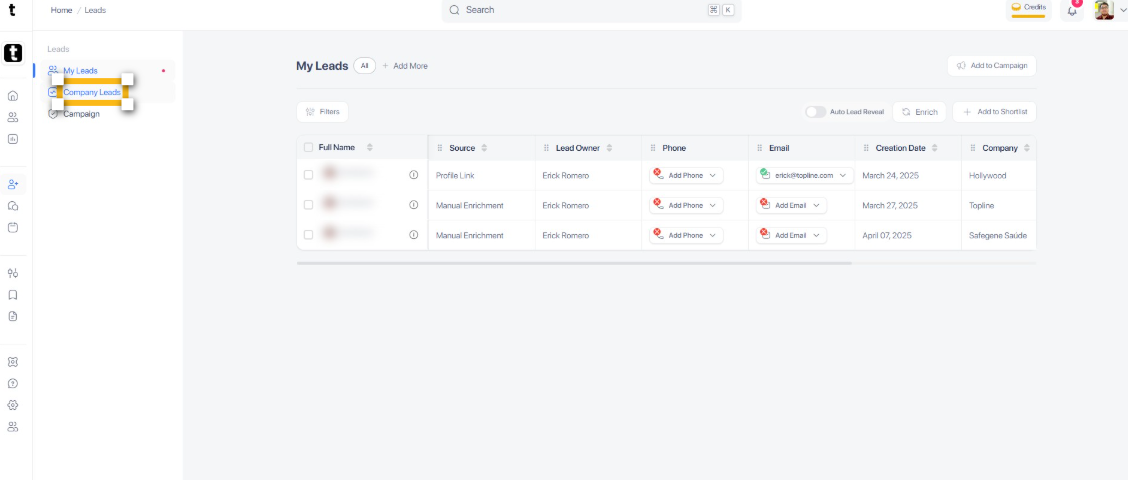
Step 3: Tick the box
Tick the box to select a lead.
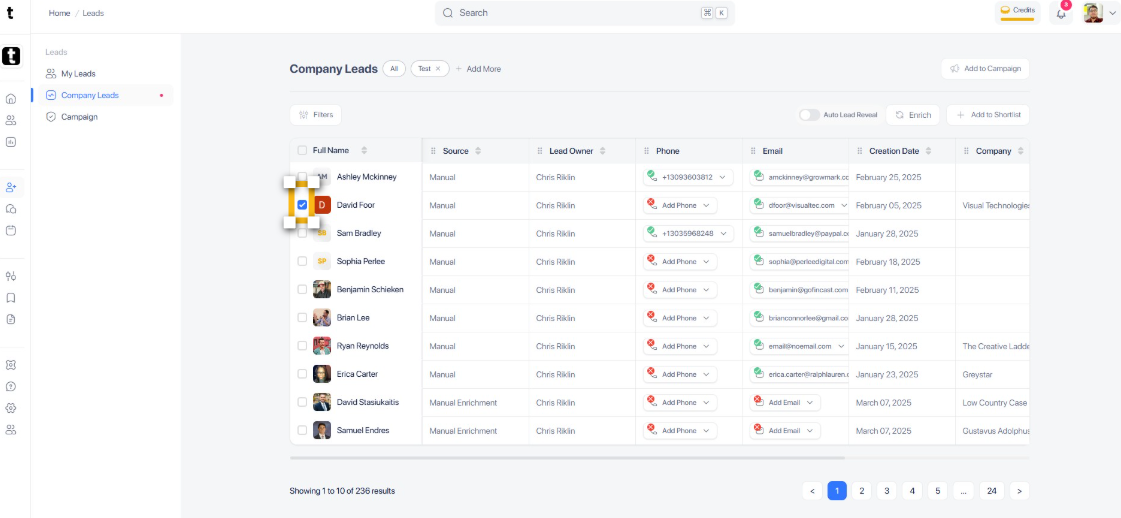
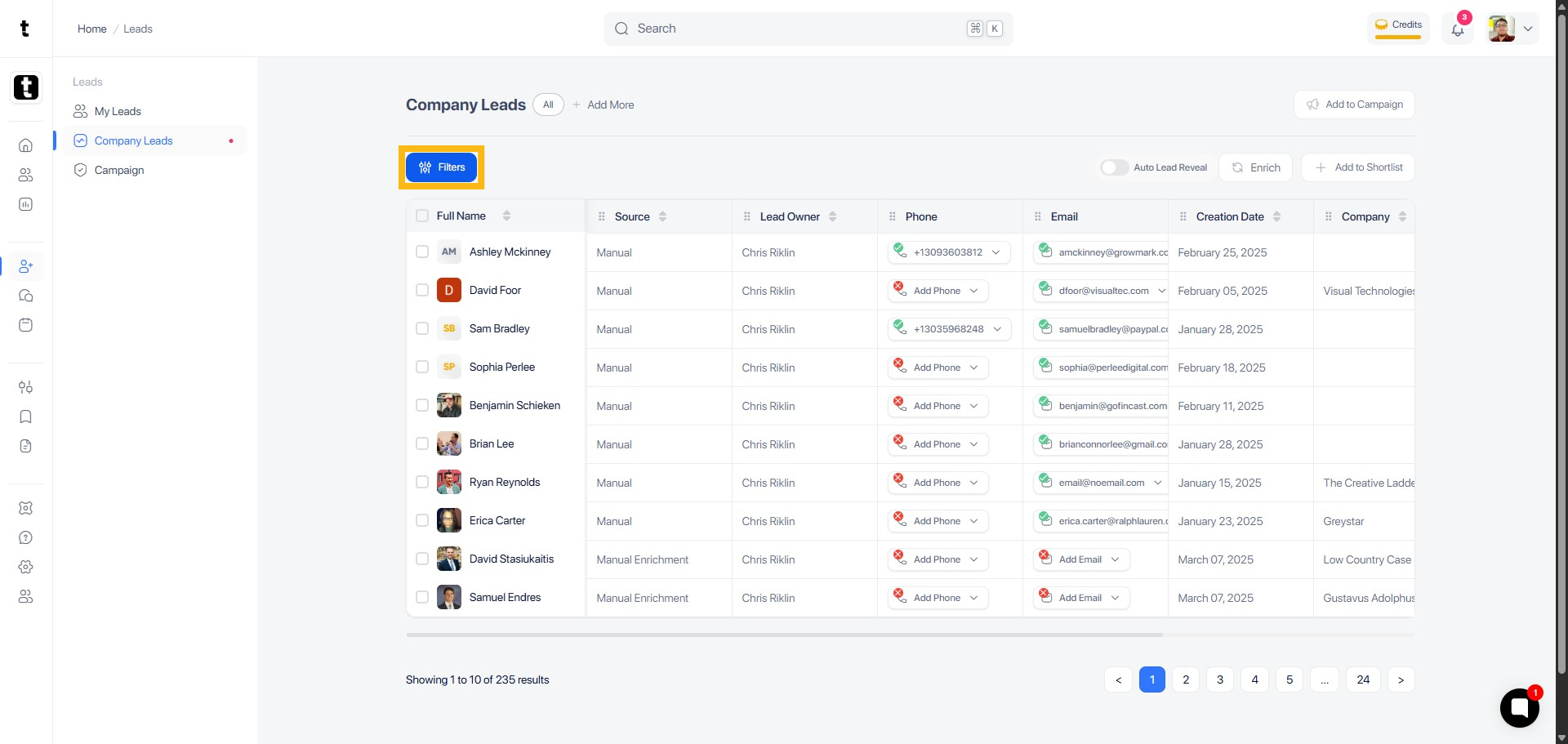
Step 4: Click Filters Button
Click the Filters button to start applying specific criteria to your lead search.
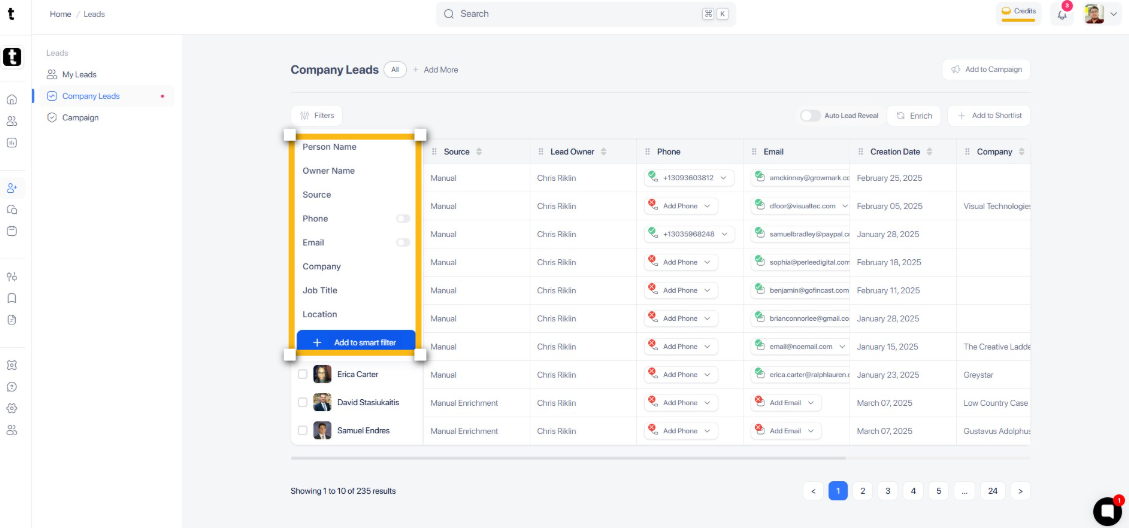
Step 5: Select Filter Options
From the filter options that appear, select the desired criteria to narrow down your lead search or create a smart filter.
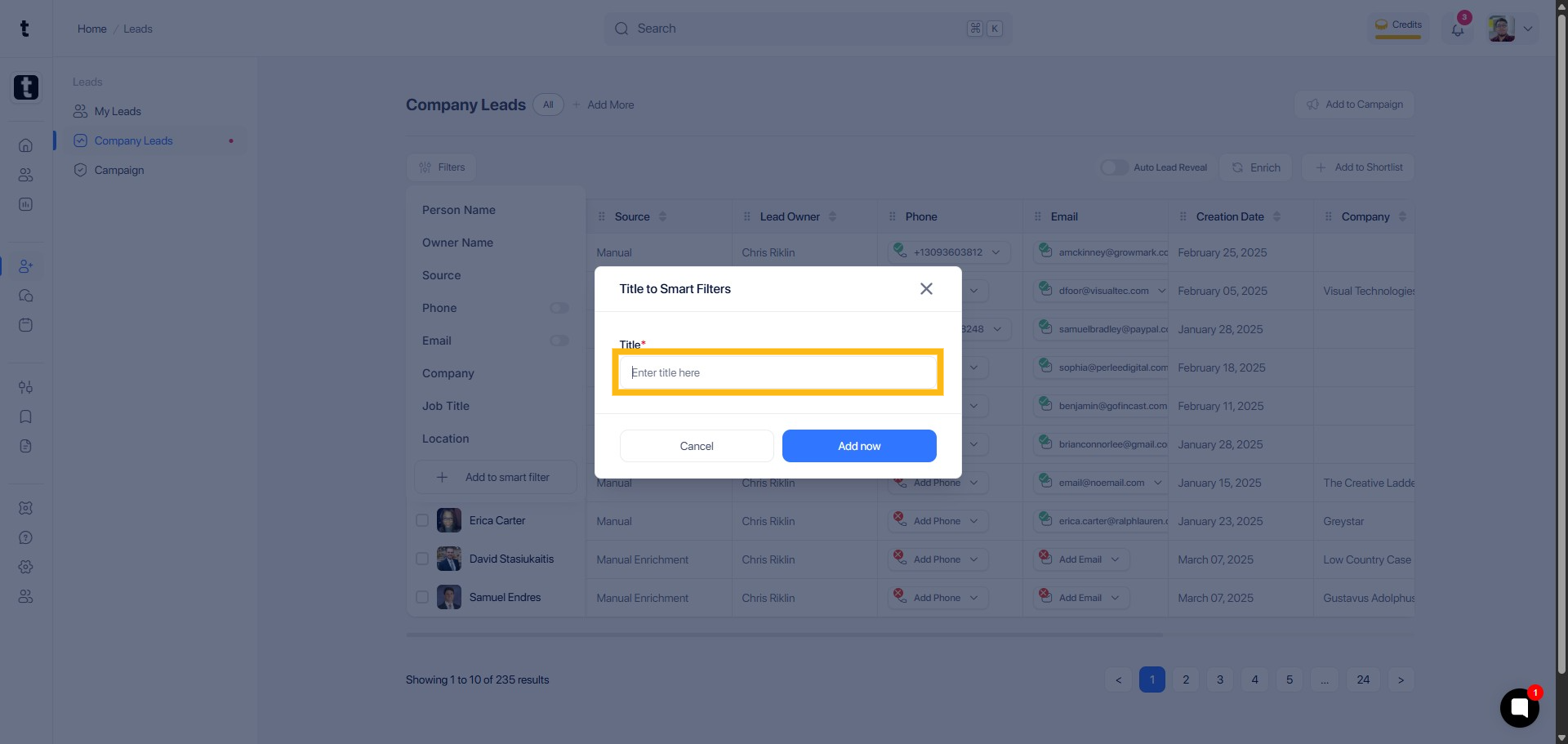
Step 6: Enter Filter Title
If you created a smart filter, you will need to add a title here.
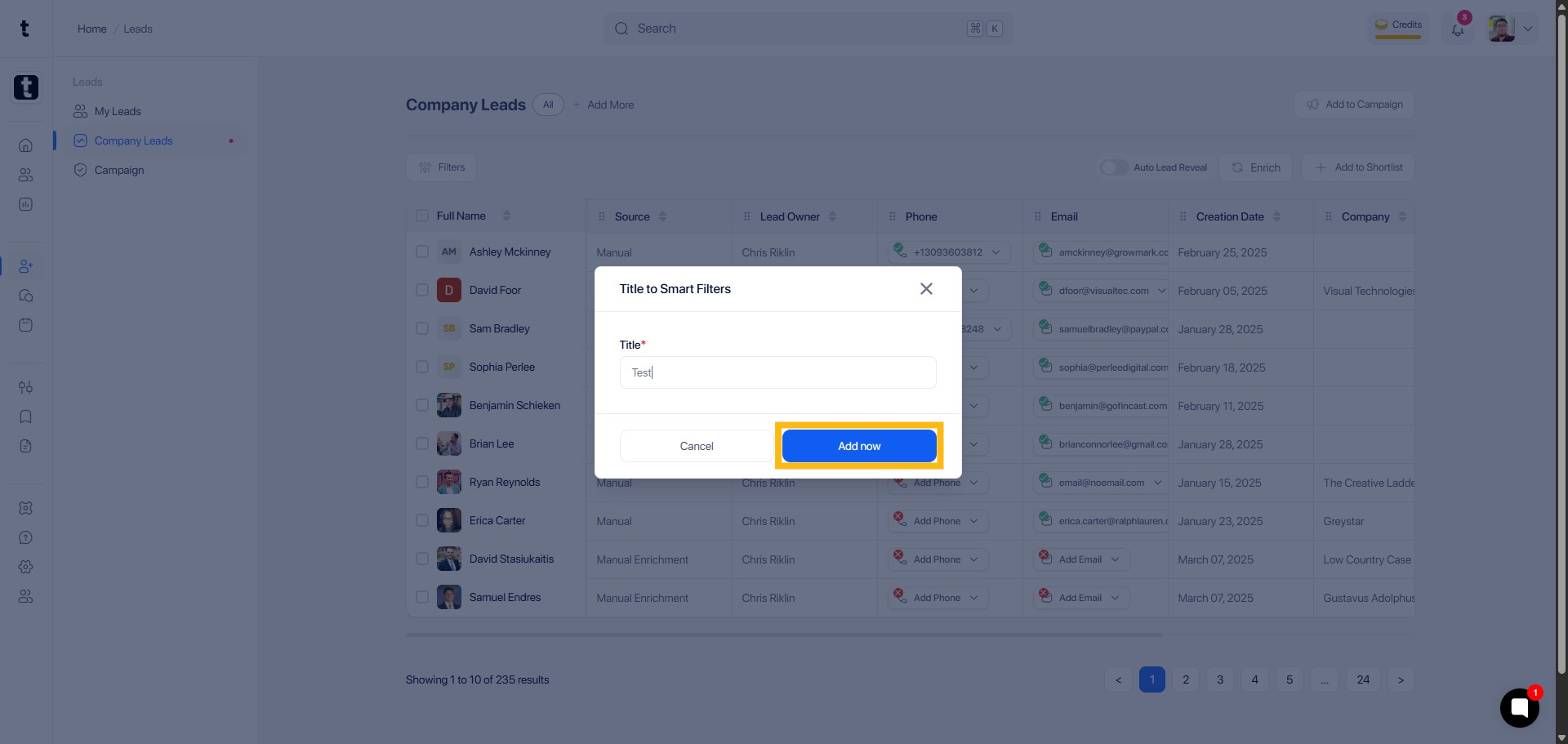
Step 7: Click Add now
Click Add now to save the entered value.
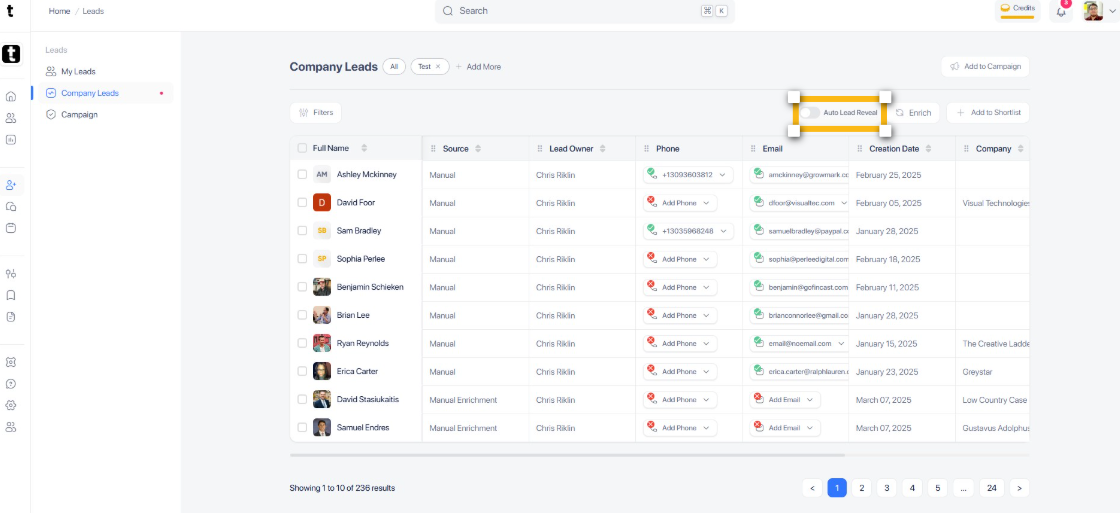
Step 8: Toggle the switch for Auto Lead Reveal
To activate Auto Lead Reveal, toggle the knob.
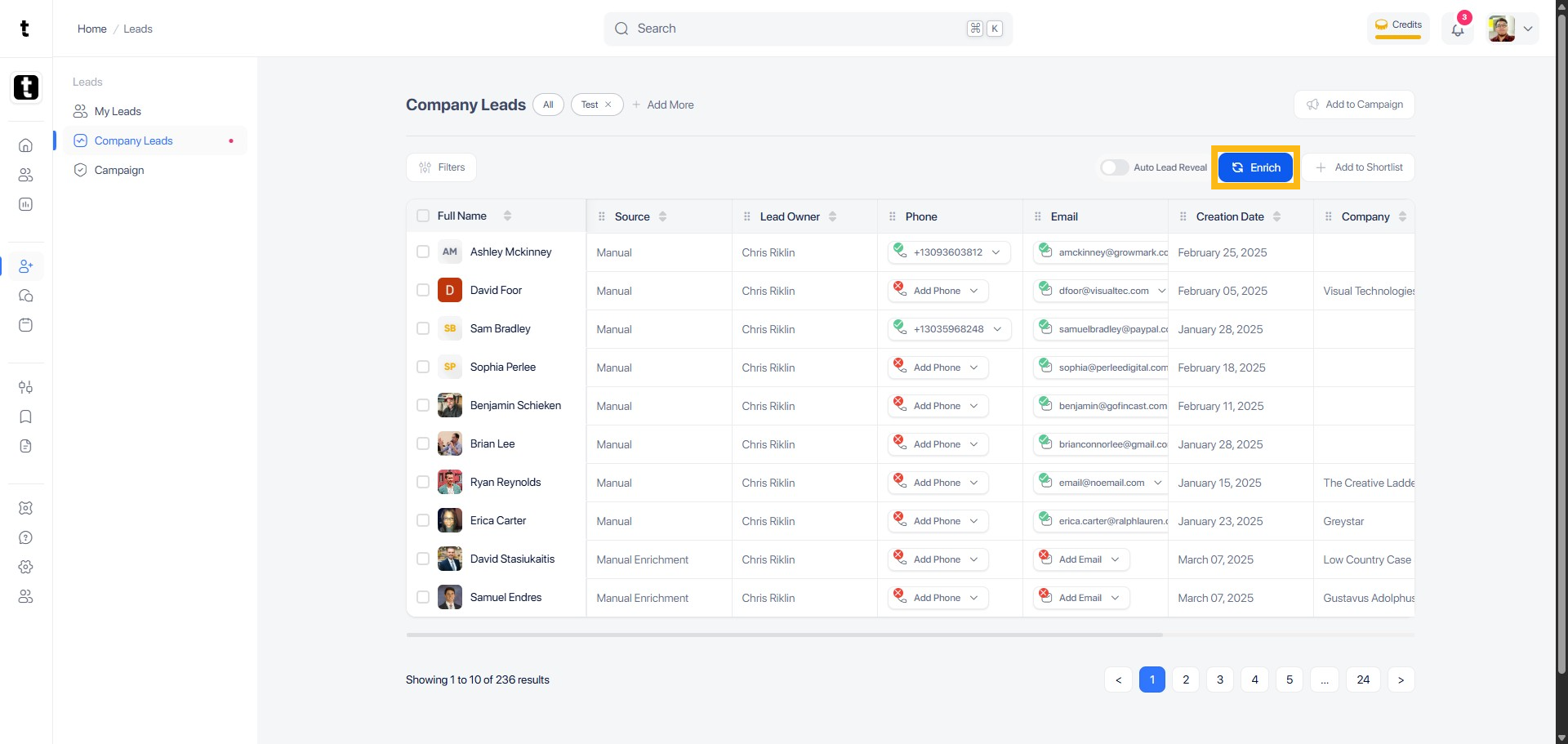
Step 9: Enrich Leads
Click the Enrich button to start enriching the selected leads.
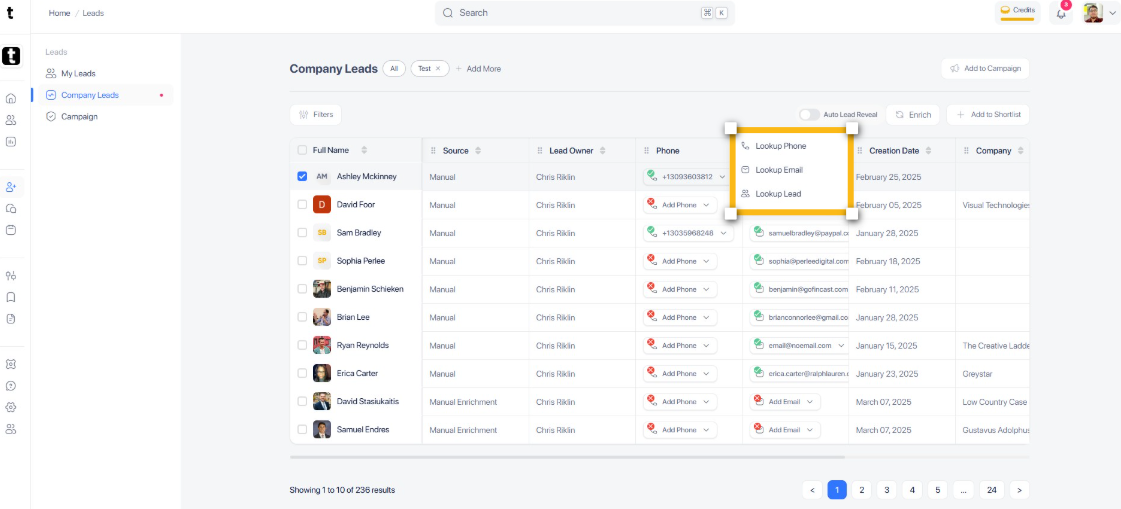
Step 10: Select between Phone, Email and Lead Lookup
Choose between Lookup Phone, Lookup Email, or Lookup Lead from a popup box.
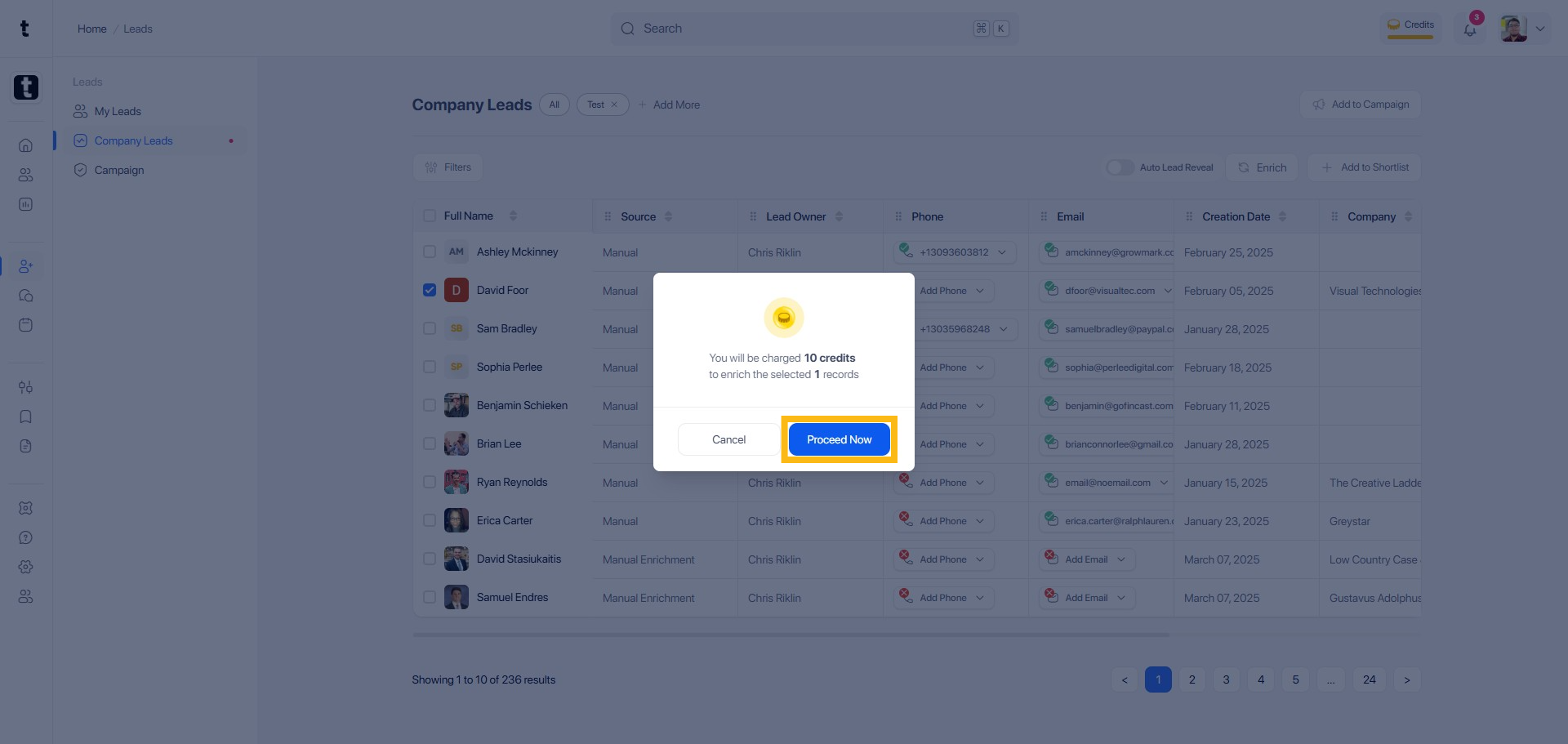
Step 11: Click Proceed Now
You will be charged depending on the volume of profiles you will lookup and click Proceed Now to continue.
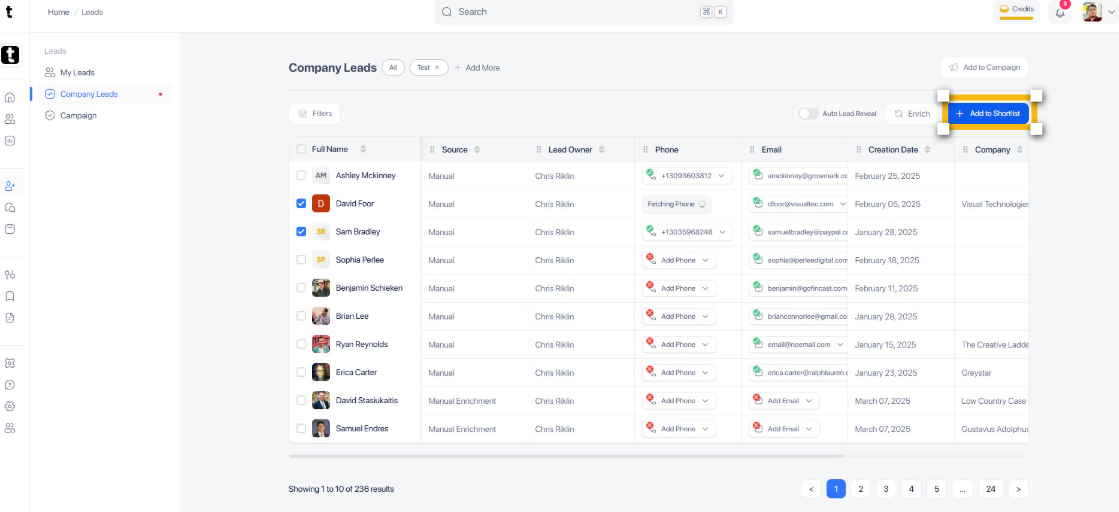
Step 12: Click Add to Shortlist button
Leads can also be added to your shortlist by clicking + Add to Shortlist.
Step 13: Add To Shortlist
You can choose to add to your existing shortlist or to create a new one by clicking Create New Shortlist +.
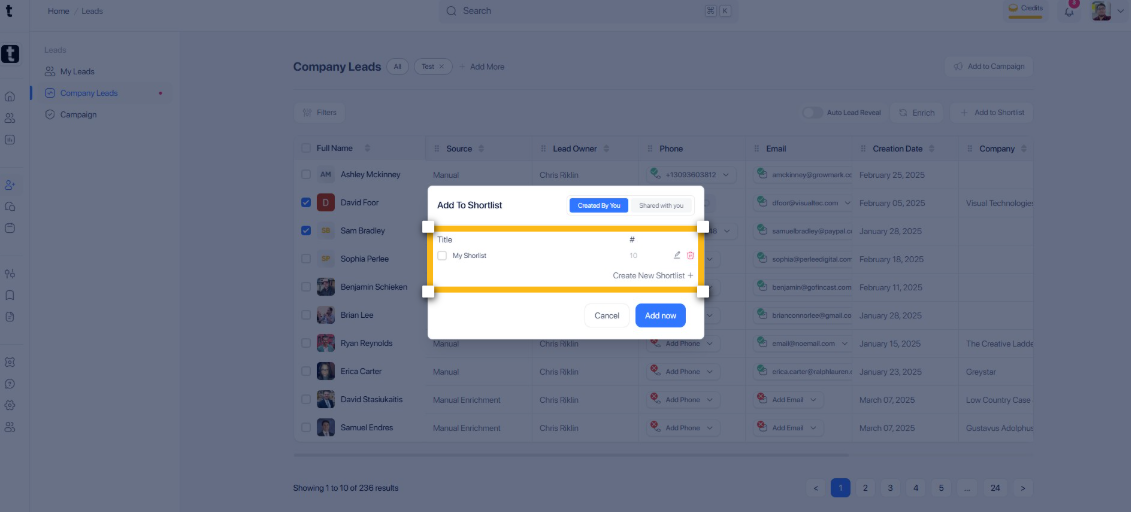
Step 14: Click Add now button
Click the Add now button to finalize the shortlisting process.