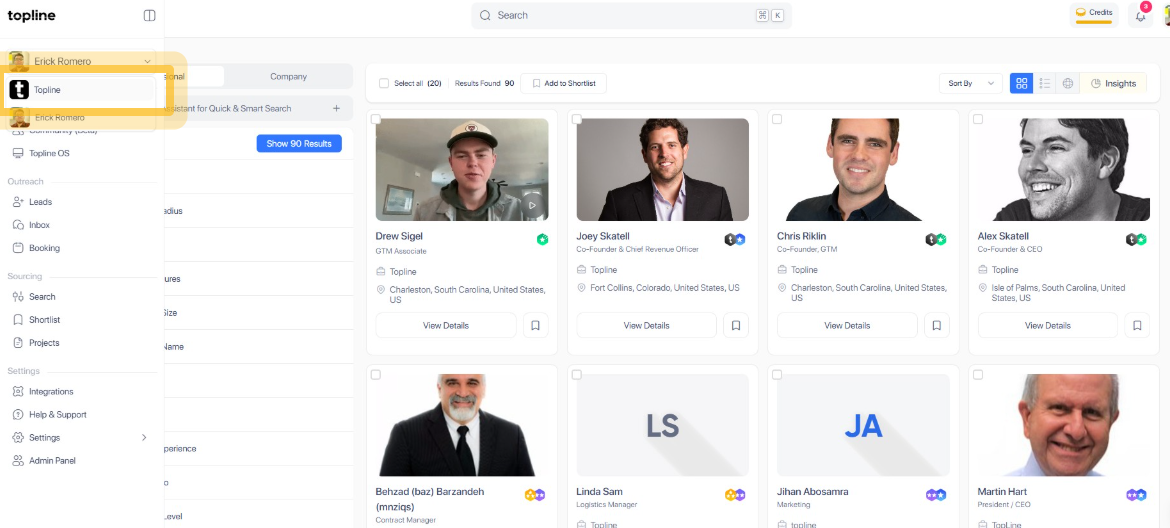
Step 1: Select Team
Using your preferred browser, go to topline.com and select the team's account from the dropdown menu in the upper right corner.
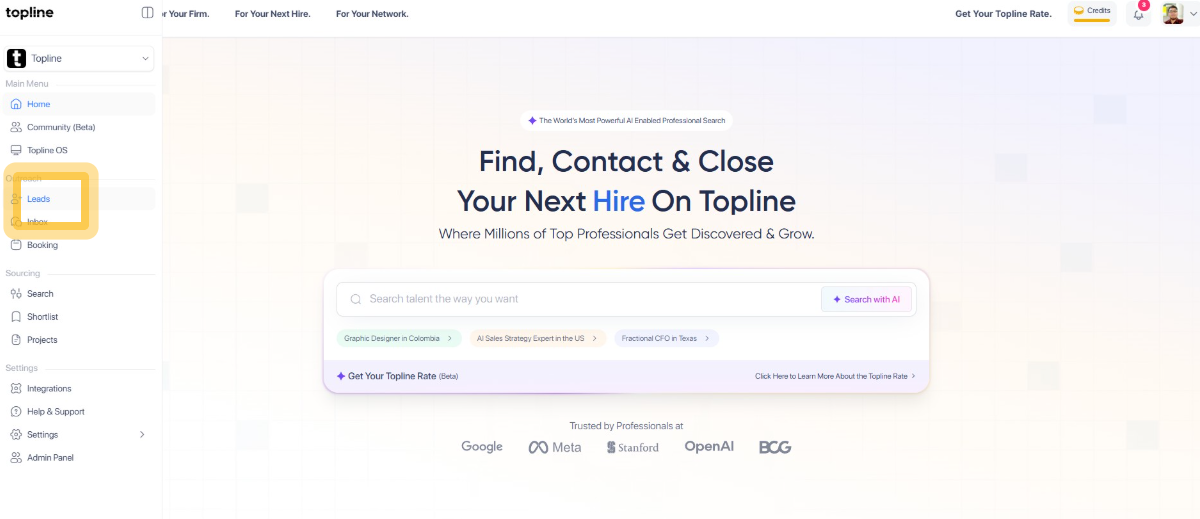
Step 2: Click on Leads
Located on the left side menu, click the Leads tab.
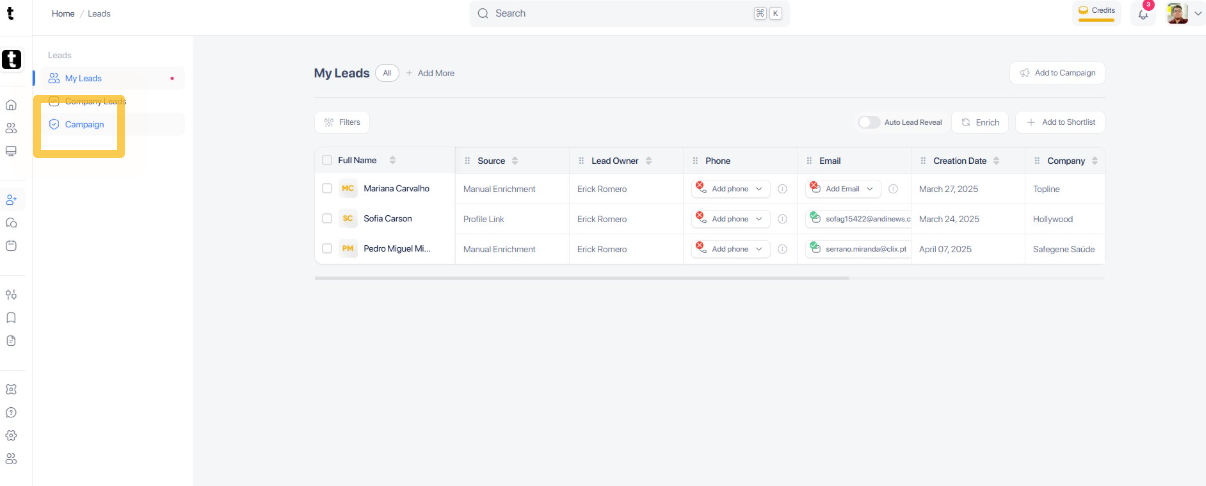
Step 3: Click Campaign
Navigate to the Campaign section to start setting up your campaign.
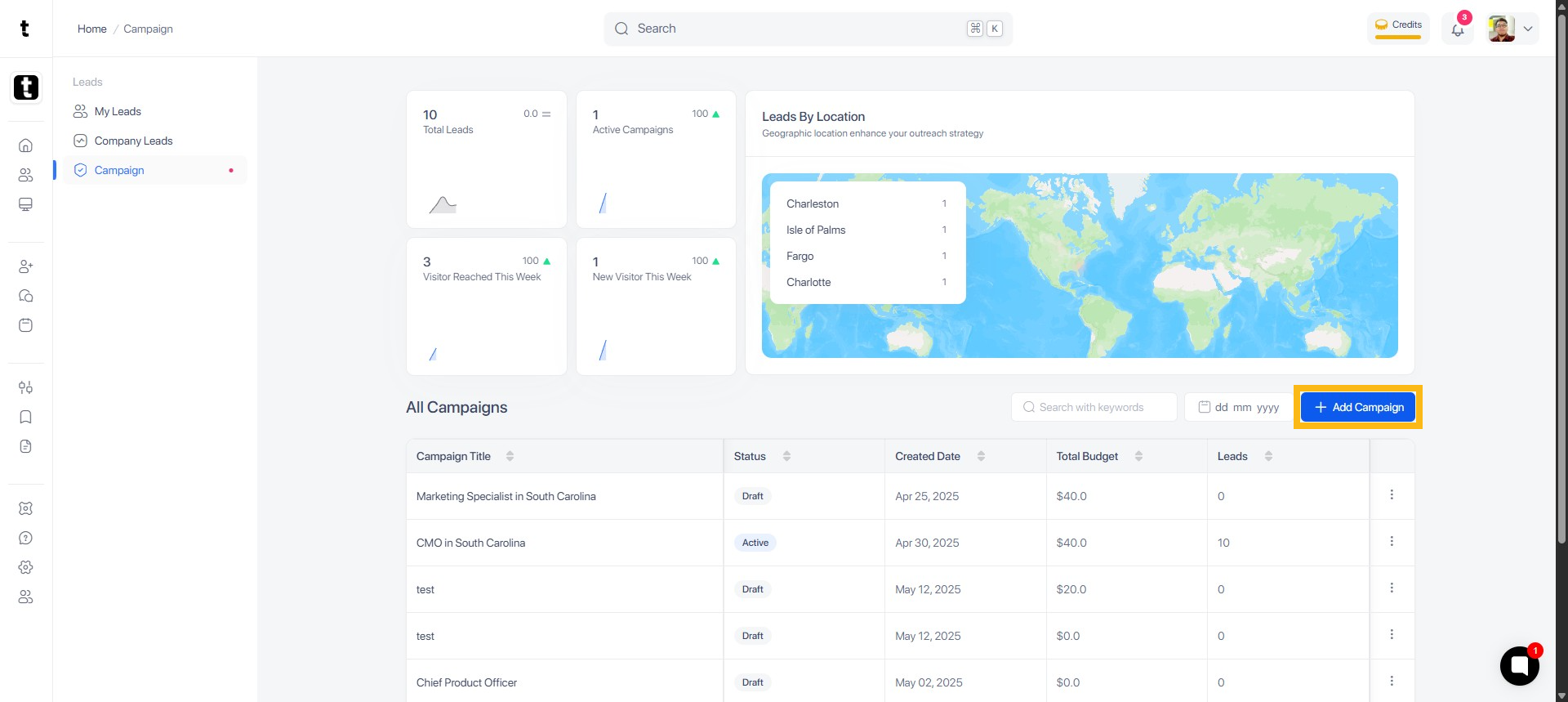
Step 4: Click + Add Campaign
To create a new campaign, click + Add Campaign.
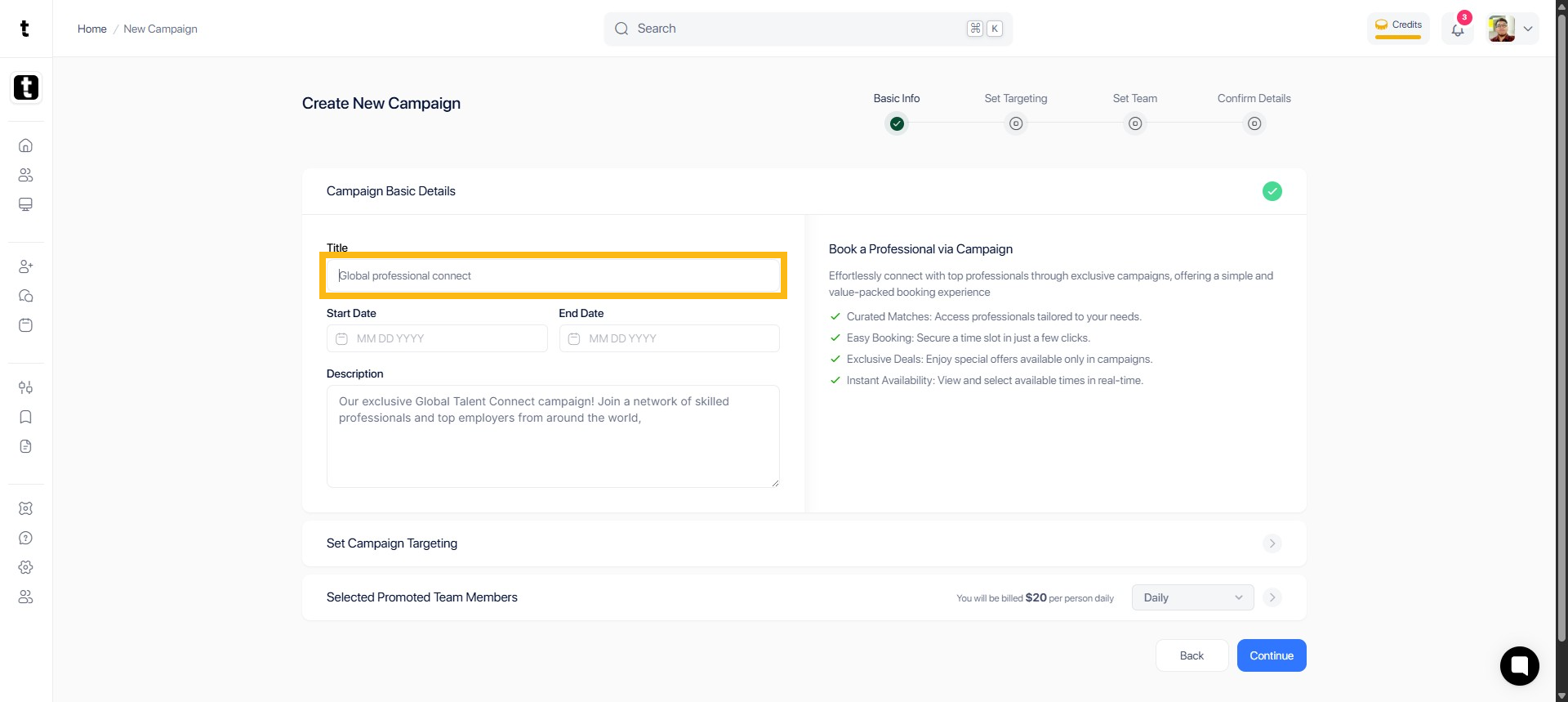
Step 5: Enter the campaign name
Enter the campaign name in the designated field.
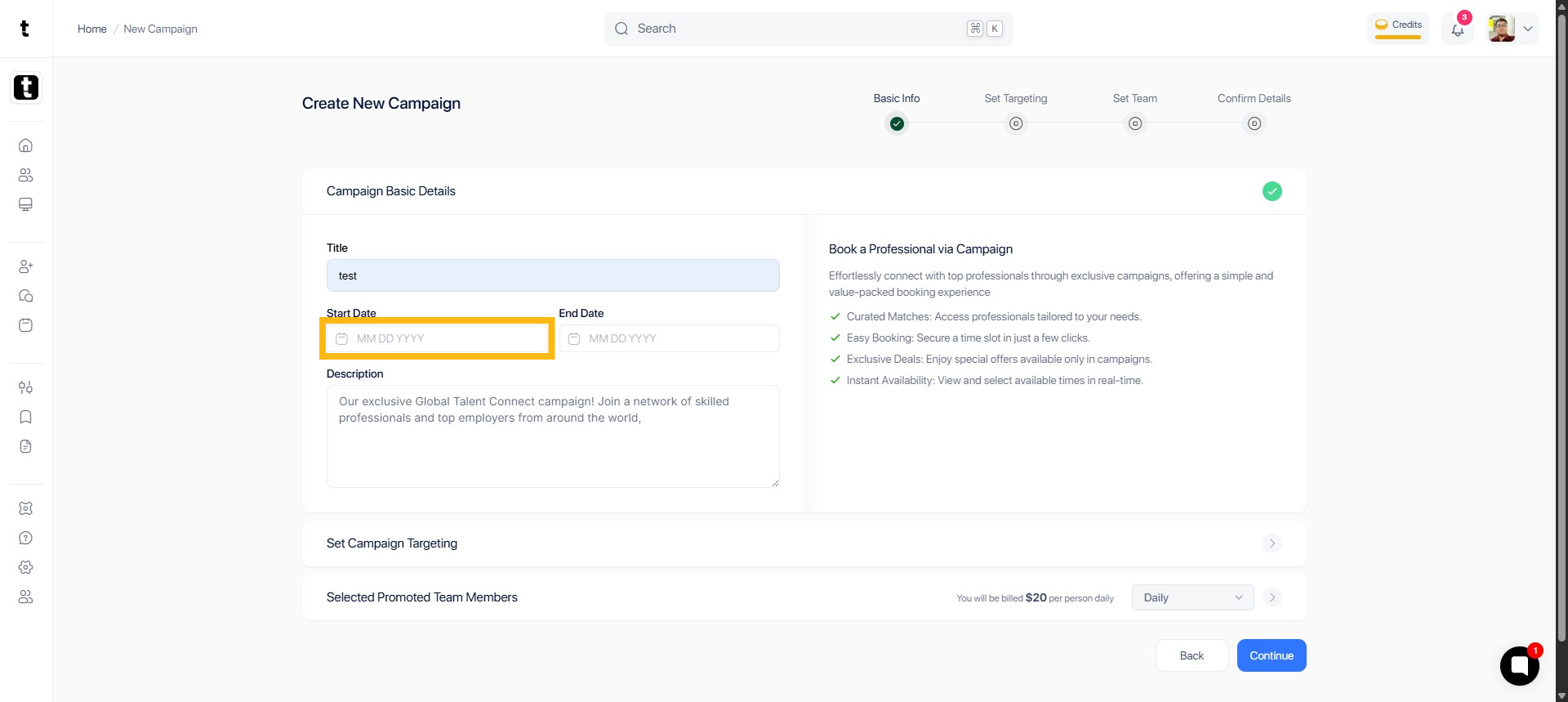
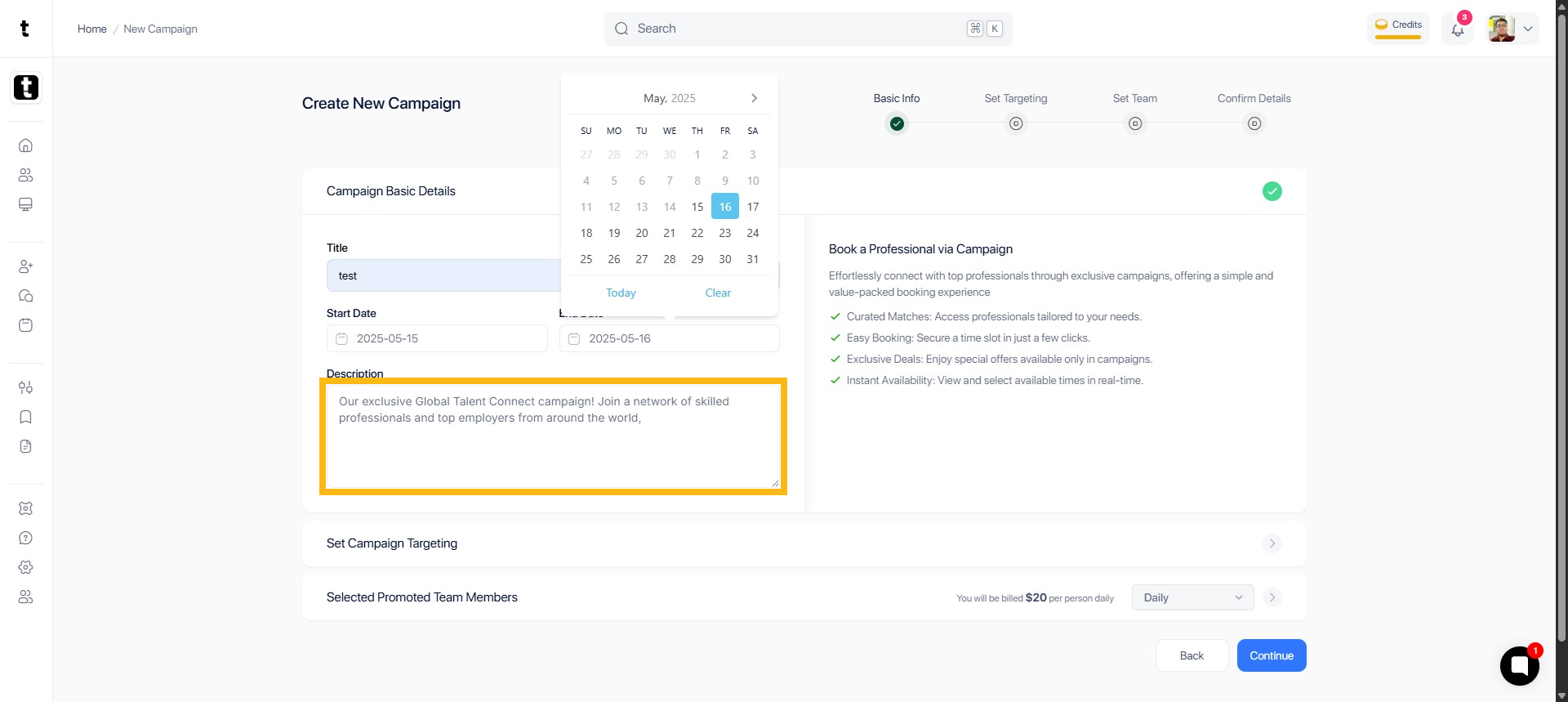
Step 6: Select Start Date
Choose and select your start date.
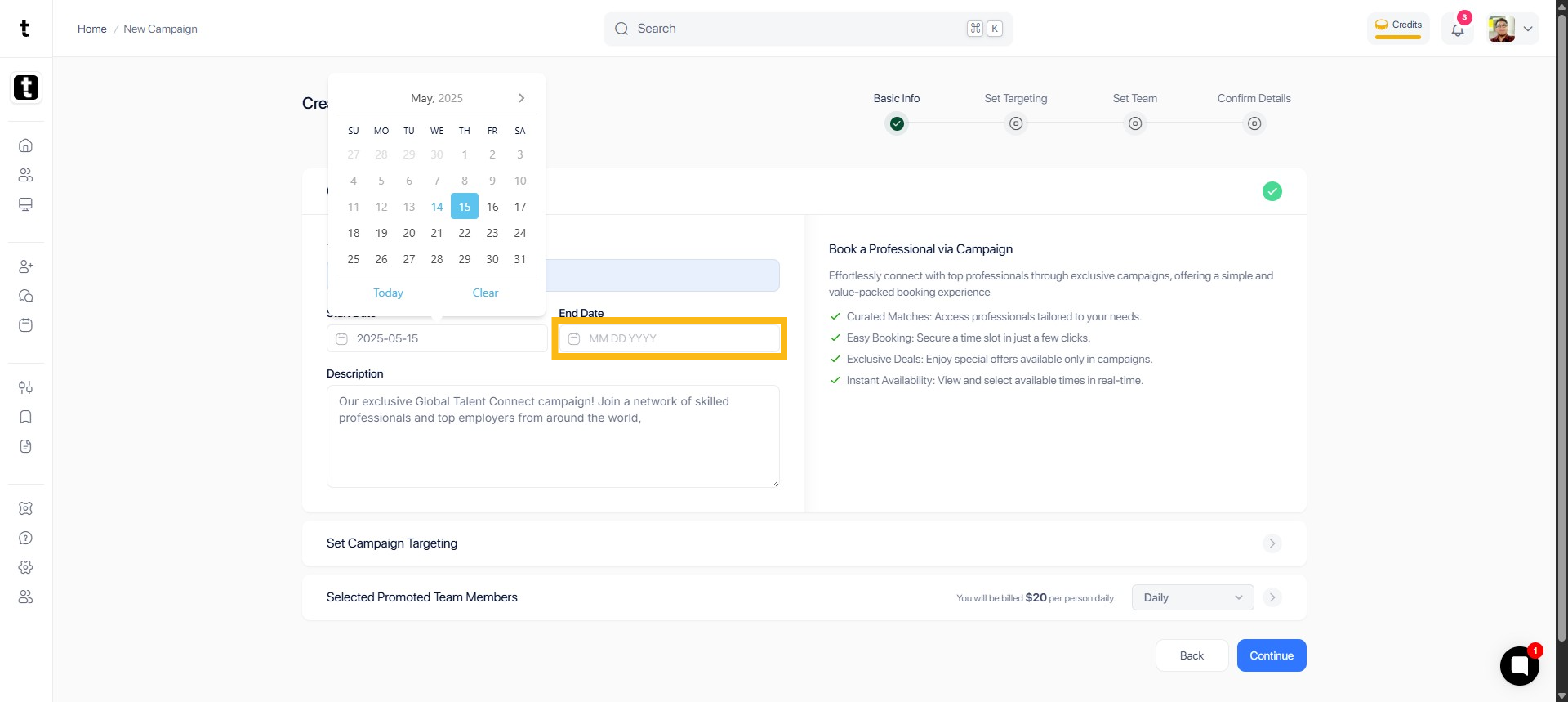
Step 7: Select End Date
Choose and select your end date.
Step 8: Add Descriptions
Describe you campaign details here.
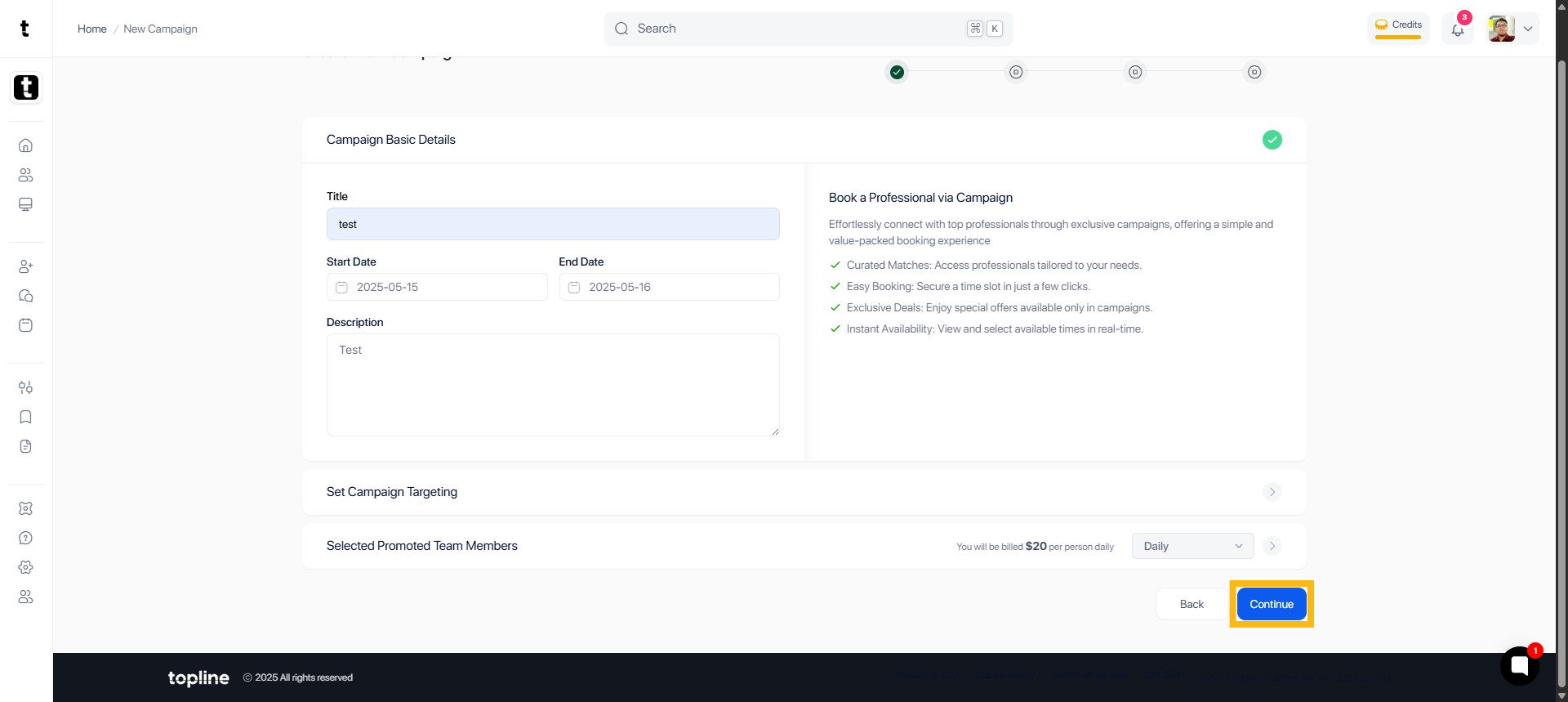
Step 9: Click Continue
Click Continue button to save the campaign.
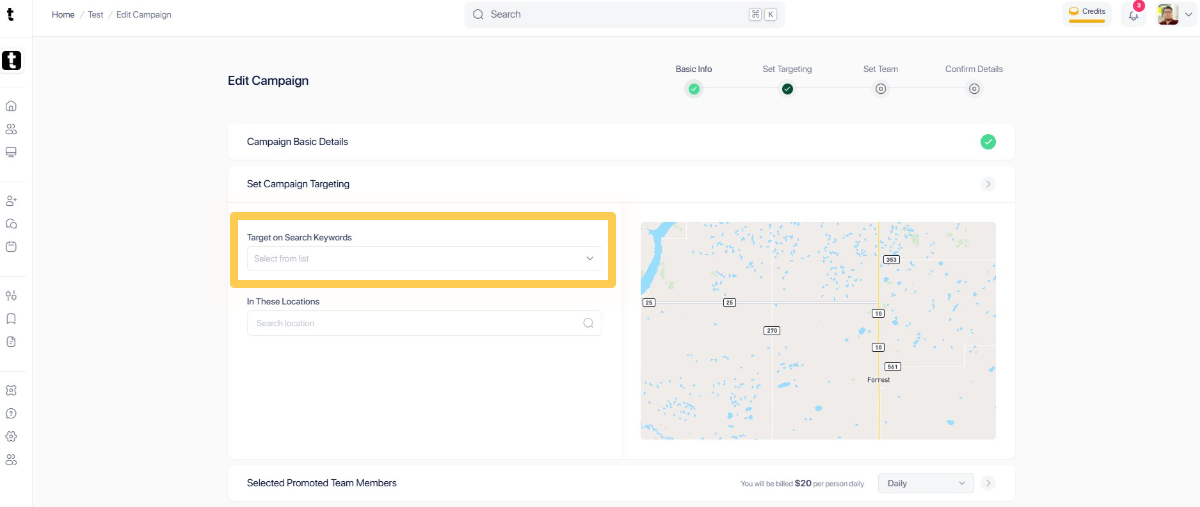
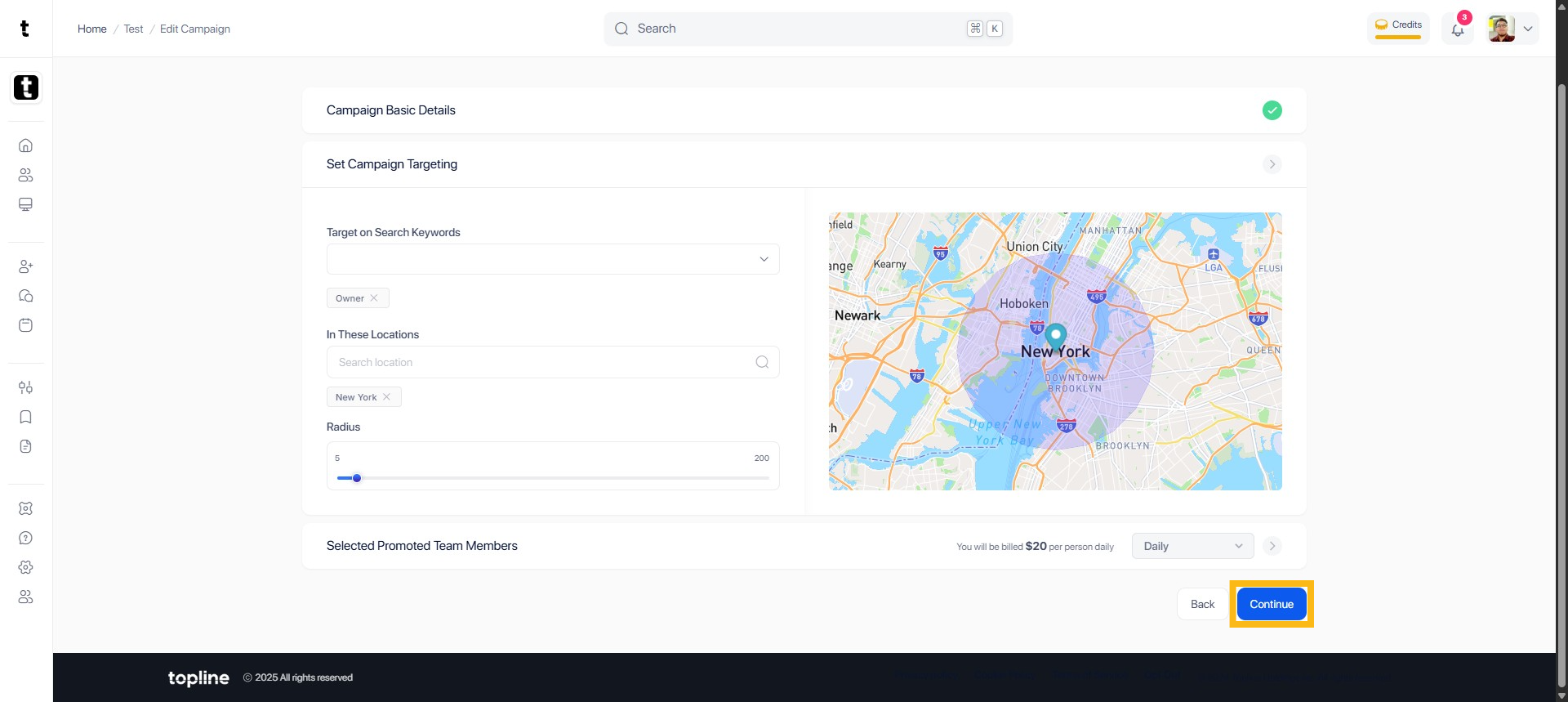
Step 10: Search Keywords
Enter your search keywords in Campaign Targeting.
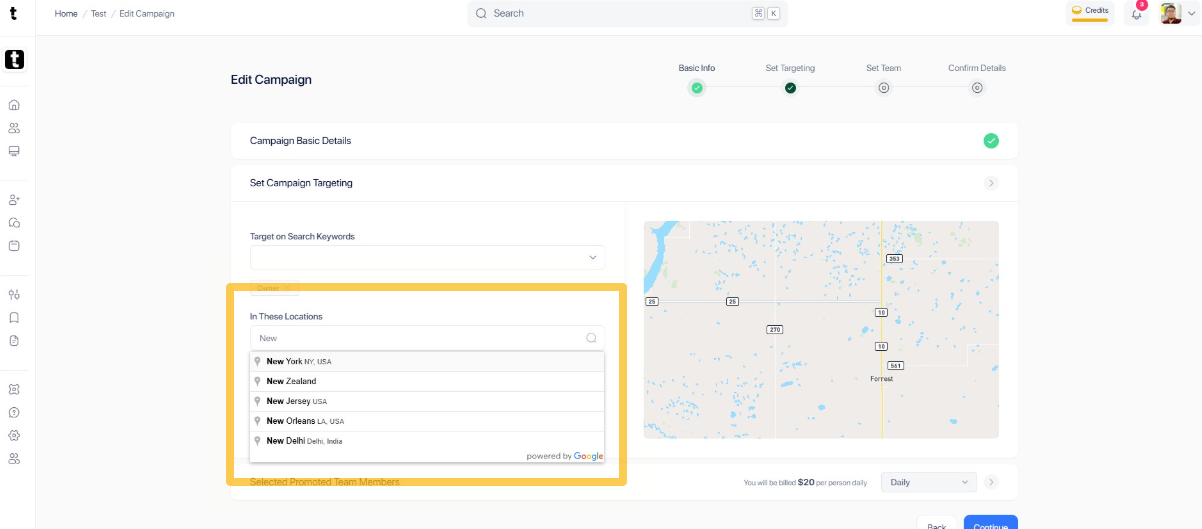
Step 11: Add location and radius
Type to select location and radius.
Step 12: Click Continue
Click Continue to save the changes.
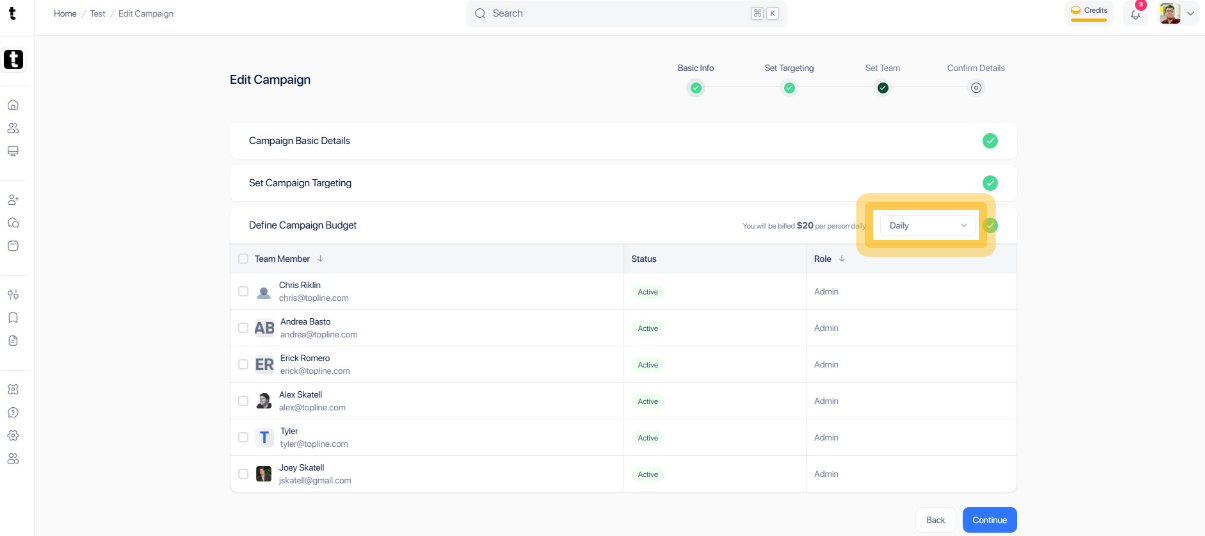
Step 13: Select campaign budget
Select between Daily or Monthly campaign budget by clicking the dropdown menu.
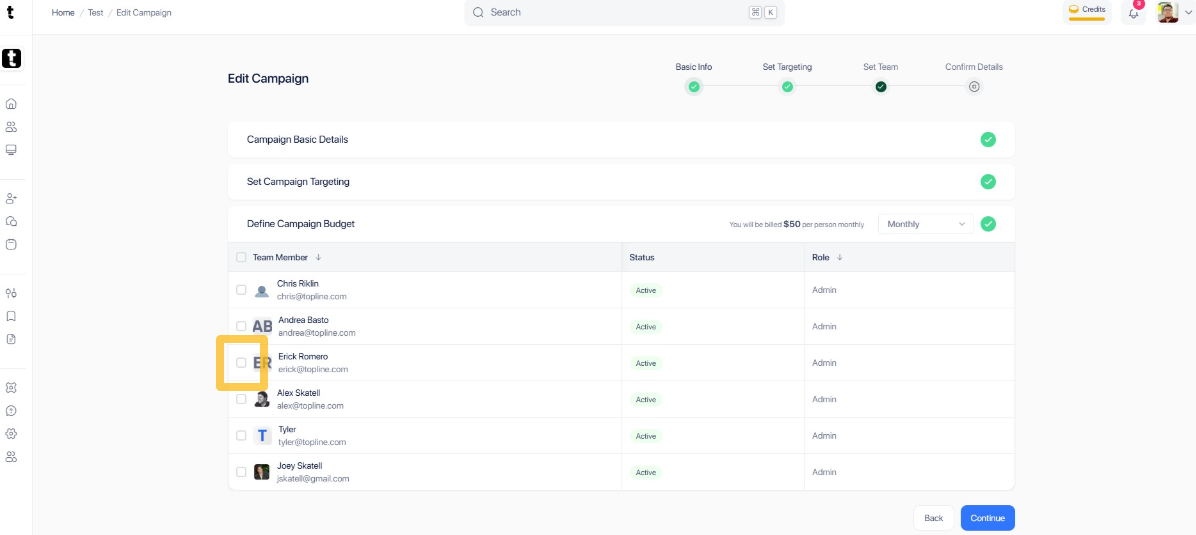
Step 14: Select Team Member
Tick the box to select a team member.
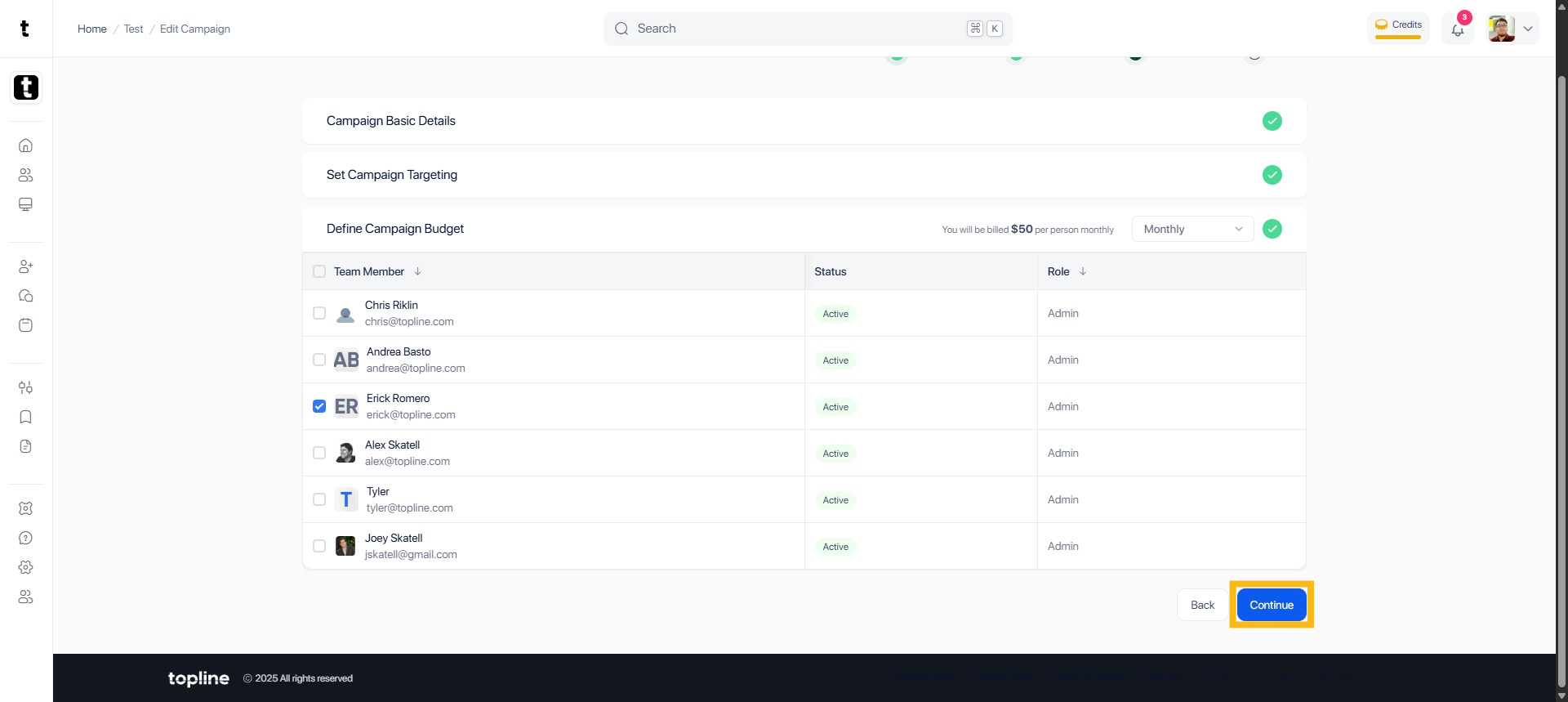
Step 15: Click Continue
Click Continue to proceed.
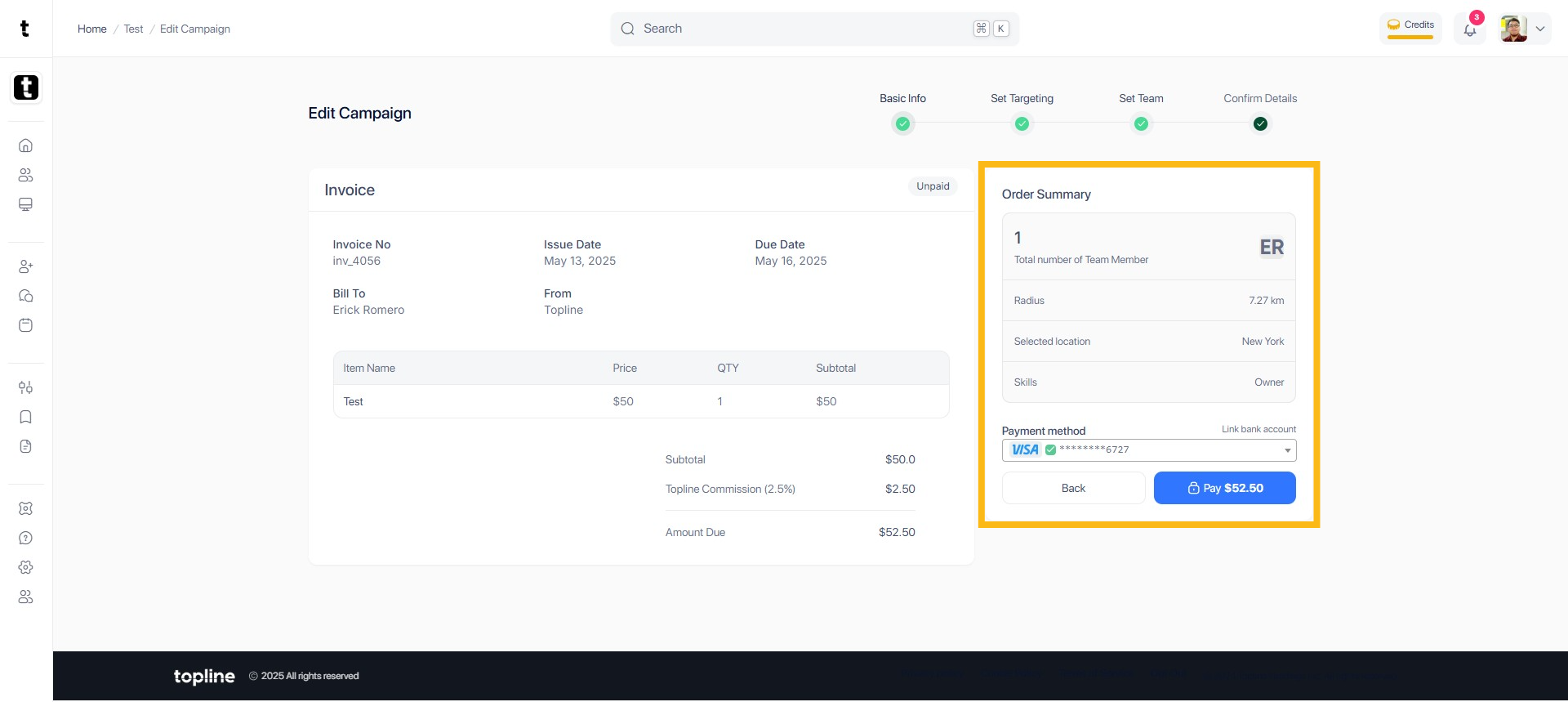
Step 16: Click Pay
When you arrive at the invoice page, you'll be required to pay for the campaign.