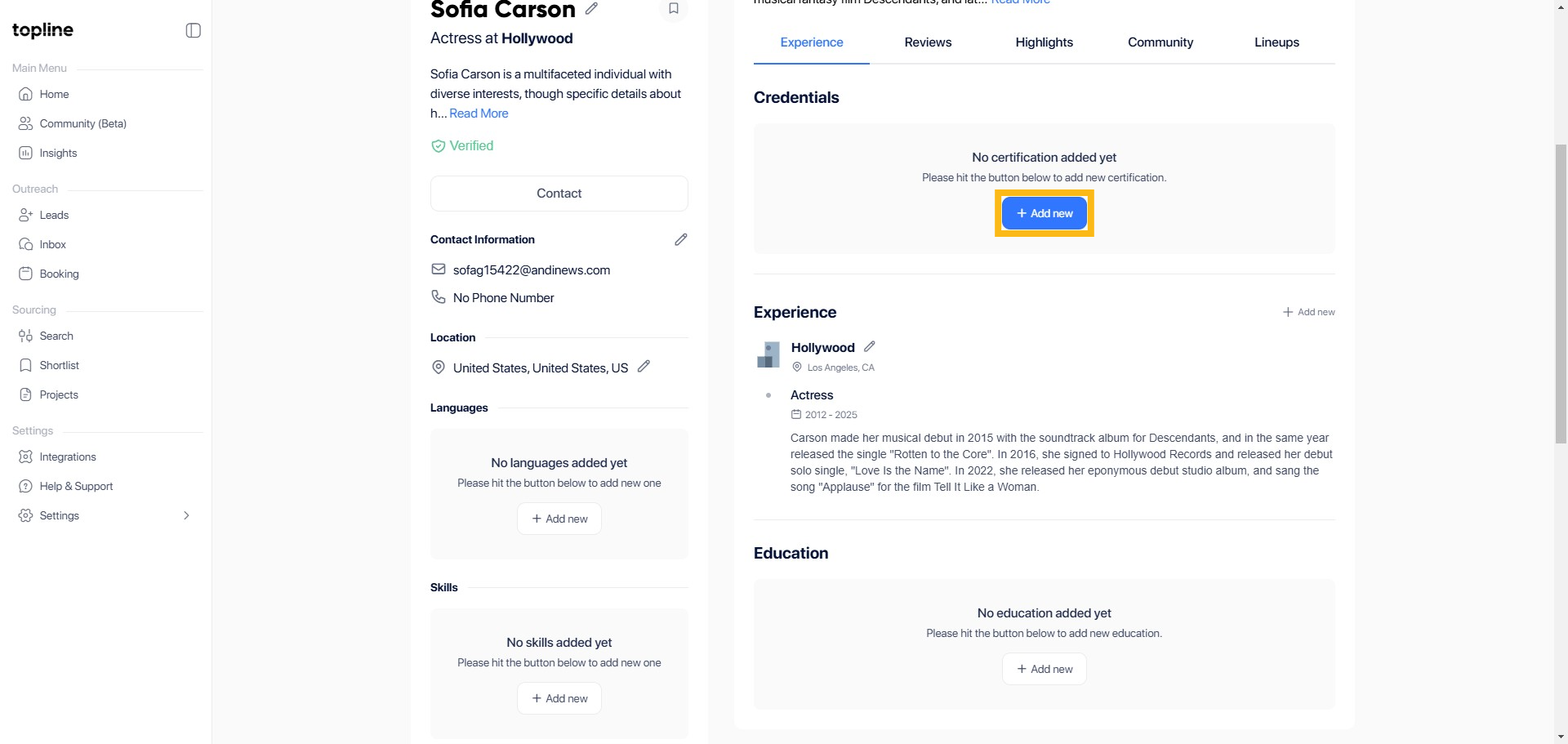
Step 1: Click + Add New
Go to the main dashboard and locate the Credentials Tab and click + Add new button to start adding a new entry.
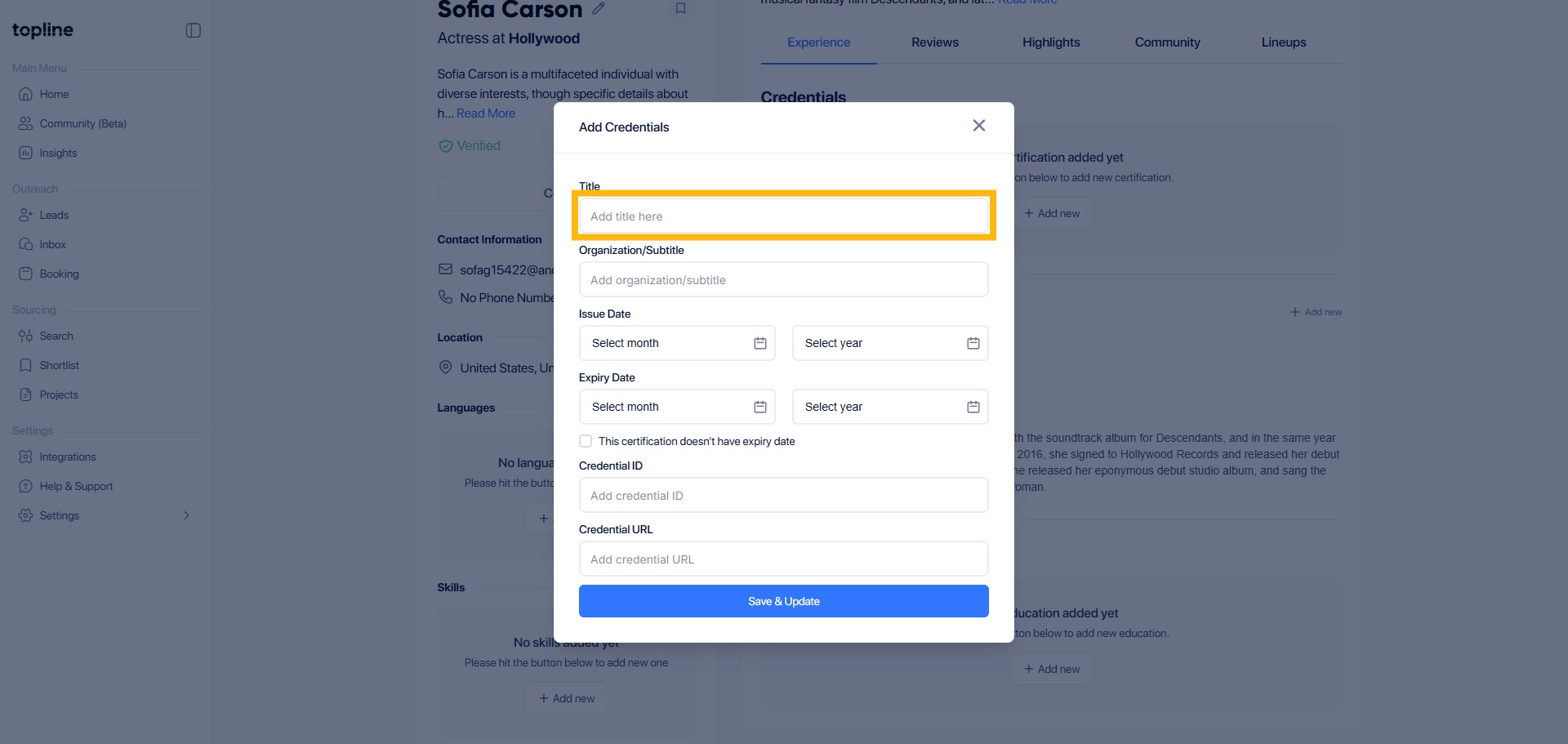
Step 2: Add Title
In the form that appears, enter your credential details. This includes the title of your credential.
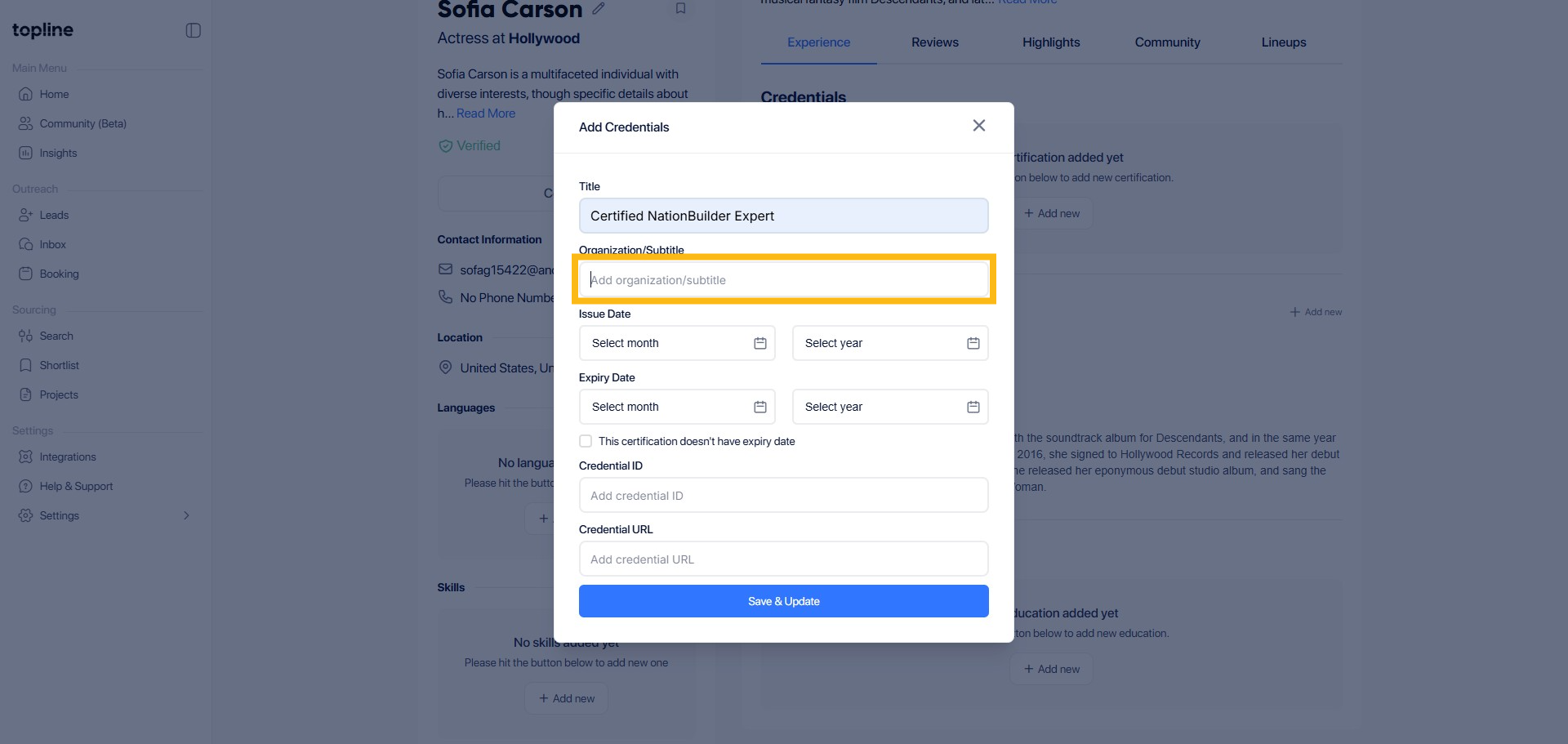
Step 3: Add Organization/Subtitle
Enter your Organization/Subtitle details. This is the name of the organization who issued the certification.
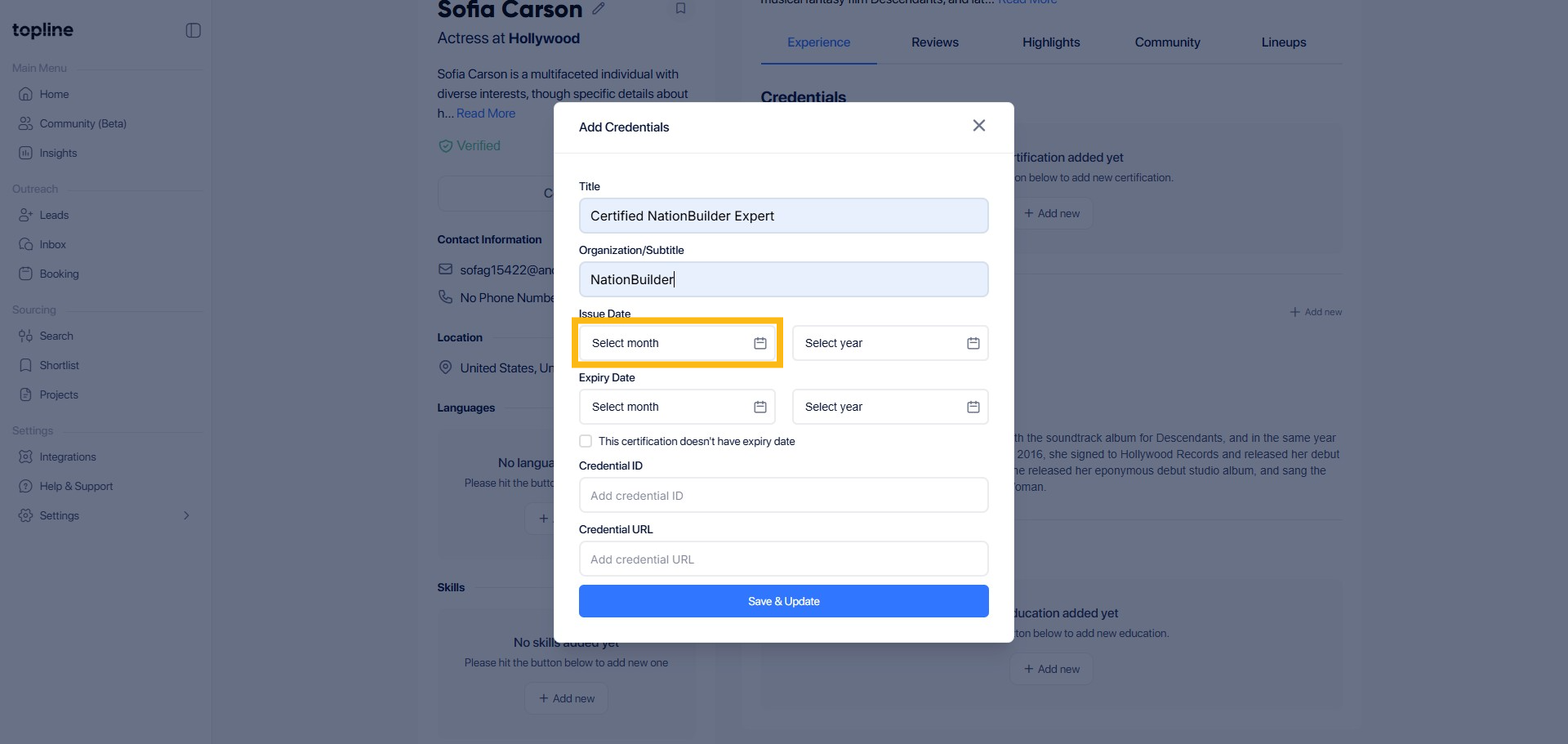
Step 4: Select Issue Date
Select the month you received your certification.
Step 5: Select Issue Year
Select the year you received your certification.

Step 6: Select Expiry Date
Select the month your certification will expire.

Step 7: Select Expiry Year
Select the year your certification will expire.

Step 8: Tick the Box
Simply tick the box, if the certificate has no expiry date.

Step 9: Add Credential ID
In this field you can add your ID number.

Step 10: Add Credential URL
In this field, you can add your certification URL.

Step 11: Click Save & Update button
Once everything is filled, click the Save & Update button to close and save your credentials.